1. Pambuka
Thank you for choosing the ZEUSLAP Z18W Dual Screen Portable Monitor. This device is designed to enhance your productivity and multimedia experience by providing two additional 18.5-inch displays for your compatible devices. This manual provides essential information for setting up, operating, and maintaining your monitor.
2. Produk Liwatview
2.1 Fitur Utama
- Dual 18.5-inch Full HD IPS Displays: Seneng karo warna-warna sing cerah lan jembar viewing angles with 1920x1080 resolution on each screen.
- 120Hz Refresh Rate: Experience smooth visuals, ideal for gaming and fast-paced multimedia.
- Konektivitas Tipe-C: Single cable solution for power and video transmission with compatible devices.
- Gamut Warna 100% sRGB: Ensures accurate and rich color reproduction.
- 300 cd/m² Padhang: Nyedhiyakake visibilitas sing jelas ing macem-macem kahanan cahya.
- Fungsi Layar Tutul: Interact directly with the display for intuitive control.
- Kompatibilitas Wide: Connects to Laptops, Desktops, Gaming Consoles, and Smartphones.
2.2 Isi Paket
Mangga dipriksa paket kanggo item ing ngisor iki:
- ZEUSLAP Z18W Dual Screen Portable Monitor
- Kabel USB-C menyang USB-C (kanggo video lan daya)
- Kabel Daya USB-A menyang USB-C (kanggo daya tambahan yen perlu)
- Manual pangguna

This image shows the ZEUSLAP Z18W dual portable monitor set up next to a laptop, demonstrating its extended display capabilities for enhanced productivity.
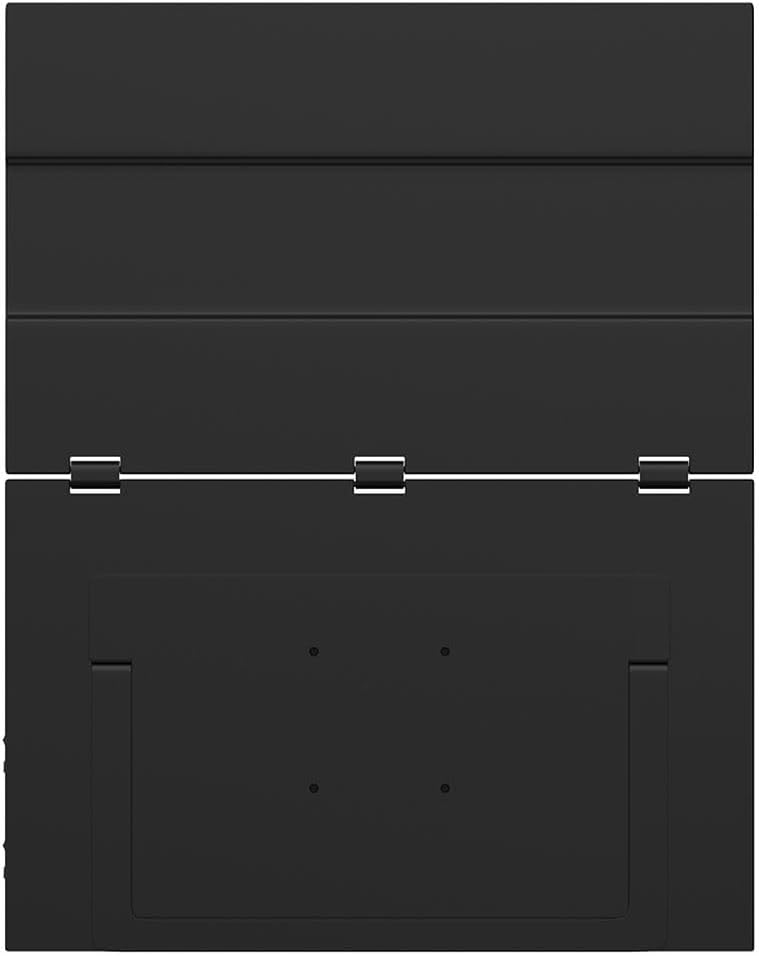
mburi view of the ZEUSLAP Z18W monitor highlights its robust hinge design and integrated stand, allowing for flexible positioning and stability.
3. Setup
3.1 Nyambung menyang Piranti
The ZEUSLAP Z18W monitor supports various connection methods. Ensure your device has the necessary ports.
- USB-C (Full-Featured): If your laptop, smartphone, or gaming console has a full-featured USB-C port (supporting DisplayPort Alternate Mode and power delivery), connect the monitor using the provided USB-C to USB-C cable. This single cable can transmit video, audio, and power to the monitor.
- USB-C (Power Only) + HDMI (Video): If your device's USB-C port does not support video output, or if you are connecting to a device with an HDMI port, you will need two cables:
- Connect an HDMI cable (not included) from your device to the monitor's HDMI input.
- Connect the provided USB-A to USB-C power cable from a USB power source (e.g., laptop USB port, wall adapter) to the monitor's USB-C power input.
3.2 Powering On / Off
- Daya On: Once connected to a compatible device and receiving power, the monitor should automatically power on. If not, press the Power button located on the side of the monitor.
- Daya Mati: Press and hold the Power button for a few seconds until the display turns off. Disconnect the cables when not in use.
4. Instruksi Operasi
4.1 Menu Tampilan ing Layar (OSD).
The OSD menu allows you to adjust various display settings. The monitor typically features a joystick or a set of buttons for navigation.
- Ngakses OSD: Press the OSD button (or push the joystick) to open the menu.
- Pandhu arah: Use the joystick or directional buttons to move through menu options.
- Pilihan: Press the OSD button (or push the joystick in) to select an option.
- metu: Navigate to the 'Exit' option or press the 'Back' button to close the OSD menu.
Common OSD settings include Brightness, Contrast, Color Temperature, Input Source, Aspect Ratio, and Volume.
4.2 Mode Tampilan
Nalika disambungake menyang komputer, sampeyan bisa ngonfigurasi mode tampilan liwat setelan tampilan sistem operasi sampeyan:
- Extend Mode: Each monitor displays a separate desktop, allowing for more screen space and multitasking.
- Mode duplikat: All monitors display the same content, useful for presentations or sharing your screen.
4.3 Touch Screen Functionality
The ZEUSLAP Z18W features a touch screen. For touch functionality to work, ensure your device supports touch input over the connected interface (typically USB-C) and that the necessary drivers are installed (usually automatically by the operating system).
- Tunggal Tutul: Tap to select or open items.
- Gerakan Multi-Tutul: Use gestures like pinch-to-zoom, two-finger scroll, etc., as supported by your operating system.
5. Pangopènan
5.1 Reresik Monitor
- Always power off the monitor and disconnect all cables before cleaning.
- Gunakake kain sing alus lan ora ana serat dampnganggo banyu utawa pembersih layar sing ora abrasif.
- Aja nyemprotake pembersih langsung menyang layar.
- Aja nggunakake alkohol, amonia, utawa pembersih abrasif, amarga bisa ngrusak permukaan layar.
5.2 Panyimpenan
- Simpen monitor ing panggonan sing adhem lan garing, adoh saka sinar srengenge langsung lan suhu sing ekstrem.
- Use the original packaging or a protective case to prevent damage during transport or storage.
6. Ngatasi masalah
| Masalah | Kemungkinan Penyebab | Solusi |
|---|---|---|
| Ora ana tampilan / pesen "Ora Ana Sinyal" |
|
|
| Monitor powers on but no image |
|
|
| Layar tutul ora nanggapi |
|
|
| Gambar kerlip utawa kleru |
|
|
7. Spesifikasi
| Fitur | Rincian |
|---|---|
| Jeneng Model | Z18W |
| Ukuran Layar | Ukuran 2 x 18.5 in |
| Resolusi | 1920 x 1080 (Full HD) |
| Refresh Rate | 120Hz |
| Tipe Panel | IPS |
| Warna Gamut | 100% sRGB |
| padhang | 300 cd/m² |
| Konektivitas | USB-C, USB |
| Fitur Khusus | Dual Screen, High Refresh Rate, Type-C Connection, Touch Screen |
| Piranti sing kompatibel | Laptop, Desktop, Gaming Console, Smartphone |
8. Warranty lan Dhukungan
The ZEUSLAP Z18W Dual Screen Portable Monitor comes with a standard manufacturer's warranty. Please refer to the warranty card included in your package for specific terms and conditions, including the warranty period and coverage details.
For technical support, troubleshooting assistance, or warranty claims, please contact the retailer where you purchased the product or visit the official ZEUSLAP websitus kanggo informasi kontak layanan pelanggan.


