
1. Pambuka
Thank you for choosing the PRIXTON Prado XL 15.6-inch Digital Photo Frame. This manual provides essential information for setting up, operating, and maintaining your device. Please read it carefully before use to ensure optimal performance and longevity of your digital photo frame.
The PRIXTON Prado XL features a vibrant 15.6-inch Full HD IPS touchscreen display, offering clear and vivid image reproduction. With built-in Wi-Fi, 32GB of internal memory, and support for both photos and videos, it allows you to easily share and display your cherished memories. The frame also includes integrated speakers and multiple input options, including USB Type-C, USB-A, and an SD card slot, providing versatile ways to manage your content.
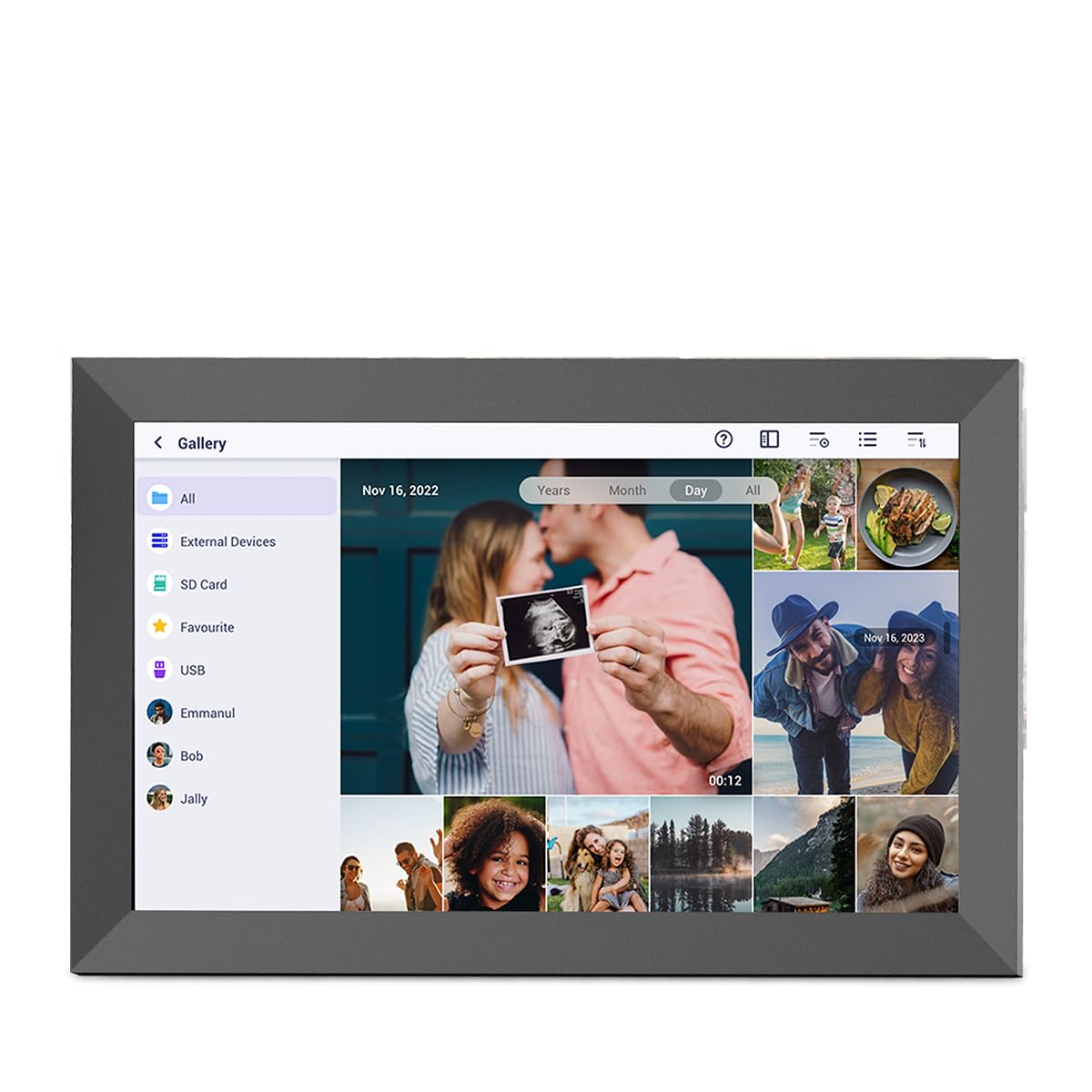
Image: The PRIXTON Prado XL digital photo frame showcasinfoto kulawargane Ga.
2. Isi Paket
Mangga dicenthang kothak kanggo item ing ngisor iki:
- PRIXTON Prado XL 15.6-inch Digital Photo Frame
- Adaptor Daya
- Manual pangguna (dokumen iki)
3. Produk Liwatview
Familiarize yourself with the various ports and controls on your digital photo frame.

Image: Back panel of the frame, highlighting the power button, USB-A, USB-C, SD card slot, and headphone jack.
Komponen utama:
- Tombol daya: Located on the back, used to turn the frame on/off or put it into sleep mode.
- Port USB-A: For connecting USB flash drives to transfer photos and videos.
- Port USB Tipe-C: For connecting compatible devices or for data transfer.
- Slot kertu SD: For inserting SD cards to display or transfer media.
- Jack Headphone: Kanggo nyambungake piranti audio eksternal.
- Input Daya DC: Kanggo nyambungake adaptor daya.
- Bolongan Pemasangan Dinding: Kanggo masang pigura ing tembok.
4. Setup
4.1 Daya Ngaktifake
- Connect the power adapter to the DC Power Input port on the back of the frame.
- Tancepake adaptor daya menyang stopkontak tembok.
- Pigura bakal kanthi otomatis urip. Yen ora, penet terus Tombol Daya kanggo sawetara detik.
4.2 Konfigurasi wiwitan
Upon first startup, you will be guided through the initial setup process:
- Pilih Basa: Pilih basa sing disenengi saka dhaptar.
- Nyambung menyang Wi-Fi: Select your Wi-Fi network and enter the password. A stable internet connection is required for app functionality and software updates.
- Setel Tanggal & Wektu: Configure the correct date, time, and time zone.
4.3 Connecting with the Uhale App
The Uhale app allows you to easily send photos and videos directly to your frame from your smartphone.
- Download App: Nggoleki "Uhale" in your smartphone's app store (iOS or Android) and install it.
- Nggawe akun: Open the Uhale app and follow the instructions to create a new user account.
- Pasangan Frame: On your digital photo frame, navigate to the "Settings" menu and find the "Bind Device" or "Add Device" option. This will display a unique code or QR code.
- Enter Code/Scan QR: In the Uhale app, select "Add Device" and either manually enter the code displayed on your frame or use your phone's camera to scan the QR code.
- Once paired, you can start sending photos and videos to your frame.

Image: A smartphone screen showing the Uhale app interface next to the digital photo frame.
5. Ngoperasikake Frame
5.1 Navigasi Layar Tutul
The Prado XL features a responsive touchscreen for easy navigation:
- Tutul: Select an item or open a menu.
- Gesek: Navigate through photos, menus, or lists.
- Pinch-to-Zoom: Zoom in or out on photos (if supported by software).
5.2 Adding Photos and Videos
There are several ways to add media to your frame:
5.2.1 Via Uhale App
- Open the Uhale app on your paired smartphone.
- Pilih foto utawa video sing pengin dikirim.
- Tap the "Send" or "Share" button to transfer them to your frame.
- The media will appear on your frame shortly, provided it is connected to Wi-Fi.
5.2.2 Via USB Drive or SD Card
- Insert a USB flash drive into the USB-A port or an SD card into the SD card slot.
- The frame will detect the external storage. Navigate to the "Gallery" or "Files" section.
- Select the desired photos or videos and choose to copy them to the frame's internal memory.

Image: User interacting with the Uhale app to send content to the digital photo frame.
5.3 Managing Content and Slideshows
- Galeri: Access all your stored photos and videos. You can view them individually or start a slideshow.
- Mbusak: Select unwanted media and choose the delete option.
- Setelan Slideshow: Customize slideshow duration, transition effects, and playback order in the settings menu.

Image: The digital photo frame displaying a lively birthday party scene.
6. Menu Setelan
Access the settings menu by tapping the gear icon on the home screen. Here you can configure various aspects of your frame:
- Tampilan: Adjust brightness, screen sleep time, and display mode.
- Wi-Fi: Atur sambungan jaringan sampeyan.
- Tanggal & Wektu: Manually set or synchronize date and time.
- Panyimpenan: View internal storage usage and manage external storage devices.
- Babagan: View device information, including software version and model number.
7. Pangopènan
7.1 Ngresiki Layar
To clean the touchscreen, gently wipe it with a soft, lint-free cloth. For stubborn smudges, slightly dampen the cloth with water or a screen-safe cleaning solution. Avoid using harsh chemicals or abrasive materials.
7.2 Nganyari Piranti Lunak
Ensure your frame is connected to Wi-Fi to receive automatic software updates. Updates provide new features, performance improvements, and bug fixes. You can manually check for updates in the "Settings" > "About" menu.
8. Ngatasi masalah
| Jeksa Agung bisa ngetokake | Solusi sing mungkin |
|---|---|
| Pigura ora bisa diuripake. | Priksa manawa adaptor daya disambungake kanthi aman menyang pigura lan stopkontak sing bisa digunakake. Coba stopkontak liyane. |
| Ora bisa nyambung menyang Wi-Fi. | Check if your Wi-Fi router is on and working. Re-enter the Wi-Fi password carefully. Move the frame closer to the router. |
| Foto / video ora katon. | Verify that the media has been successfully uploaded via the app or copied from USB/SD. Check file formats for compatibility. Ensure the frame is connected to Wi-Fi if using the app. |
| Layar tutul ora responsif. | Restart the frame by holding the power button. Ensure the screen is clean and free of debris. |
| Frame is slow or freezes. | Restart the frame. Clear some internal storage if it is nearly full. |
9. Spesifikasi
| Fitur | Rincian |
|---|---|
| Nomer Model | 10006183 |
| Ukuran Tampilan | 15.6 ing |
| Tipe Tampilan | Layar tutul IPS |
| Resolusi | 1920x1080 Full HD |
| Memori Internal | Flash 32 GB |
| RAM | 1 GB |
| Konektivitas | Wi-Fi |
| Pelabuhan | USB Type-C, USB-A, SD Card Slot, Headphone Jack |
| Audio | Pidato Terpadu |
| Ukuran (L x W x H) | 14 x 21 x 2.51 cm |
10. Warranty lan Dhukungan
PRIXTON products are designed and manufactured to the highest quality standards. For information regarding warranty coverage, please refer to the warranty card included with your product or visit the official PRIXTON websitus.
If you encounter any issues or have questions not covered in this manual, please contact PRIXTON customer support for assistance. You can find contact details on the PRIXTON websitus utawa liwat platform tuku.
Dhukungan Online: Visit the PRIXTON Store on Amazon