
1. Pambuka
Matur nuwun kanggo tukuasing the LYNCAST N300 Mini Smart Projector. This manual provides essential information for setting up, operating, and maintaining your projector. Please read it thoroughly before use to ensure optimal performance and safety.
The LYNCAST N300 is a portable smart projector featuring Android 13, 1080P native resolution with 4K support, automatic keystone correction, WiFi 6, and Bluetooth 5.4 connectivity. Its 180° rotatable design offers flexible projection angles for various environments.
2. Informasi Safety
- Aja ndeleng langsung menyang lensa proyektor nalika lamp lagi aktif.
- Pesthekake ventilasi sing tepat ing sekitar proyektor kanggo nyegah overheating.
- Gunakake mung adaptor daya sing kasedhiya.
- Supaya proyektor adoh saka banyu utawa cairan liyane.
- Aja nyelehake proyektor ing permukaan sing ora stabil.
- Aja nyoba mbongkar utawa ndandani proyektor dhewe. Hubungi petugas servis sing mumpuni.
- Tetep adoh saka bocah-bocah.
3. Isi Paket
Priksa manawa kabeh item ana ing paket sampeyan:
- LYNCAST N300 Mini Smart Projector
- Adaptor Daya
- Kabel HDMI Kab
- Remote Control
- Manual pangguna (dokumen iki)
4. Produk Liwatview
4.1 Komponen Proyektor
Familiarize yourself with the main components and interfaces of your LYNCAST N300 projector.
Gambar 4.1: mburi view of the LYNCAST N300 projector showing HDMI and USB ports.
- Lensa: Proyeksi gambar menyang layar.
- Roda Fokus: Manual adjustment for image sharpness.
- Tombol daya: Nguripake / mateni proyektor.
- Port HDMI: Connects to external devices like TV sticks, laptops, gaming consoles (PS5), and TV boxes.
- Port USB: Connects to USB storage devices or charges compatible devices.
- Input daya: Nyambungake adaptor daya.
- Speaker: Output audio terintegrasi.
- Ngadeg sing bisa diatur: Allows for 180° rotation and flexible projection angles.
5. Setup
5.1 Sambungan Daya
- Sambungake adaptor daya menyang port input daya proyektor.
- Tancepake adaptor daya menyang stopkontak tembok.
- Pencet tombol daya ing proyektor utawa remot kontrol kanggo nguripake.
5.2 Penempatan lan Penyesuaian Sudut
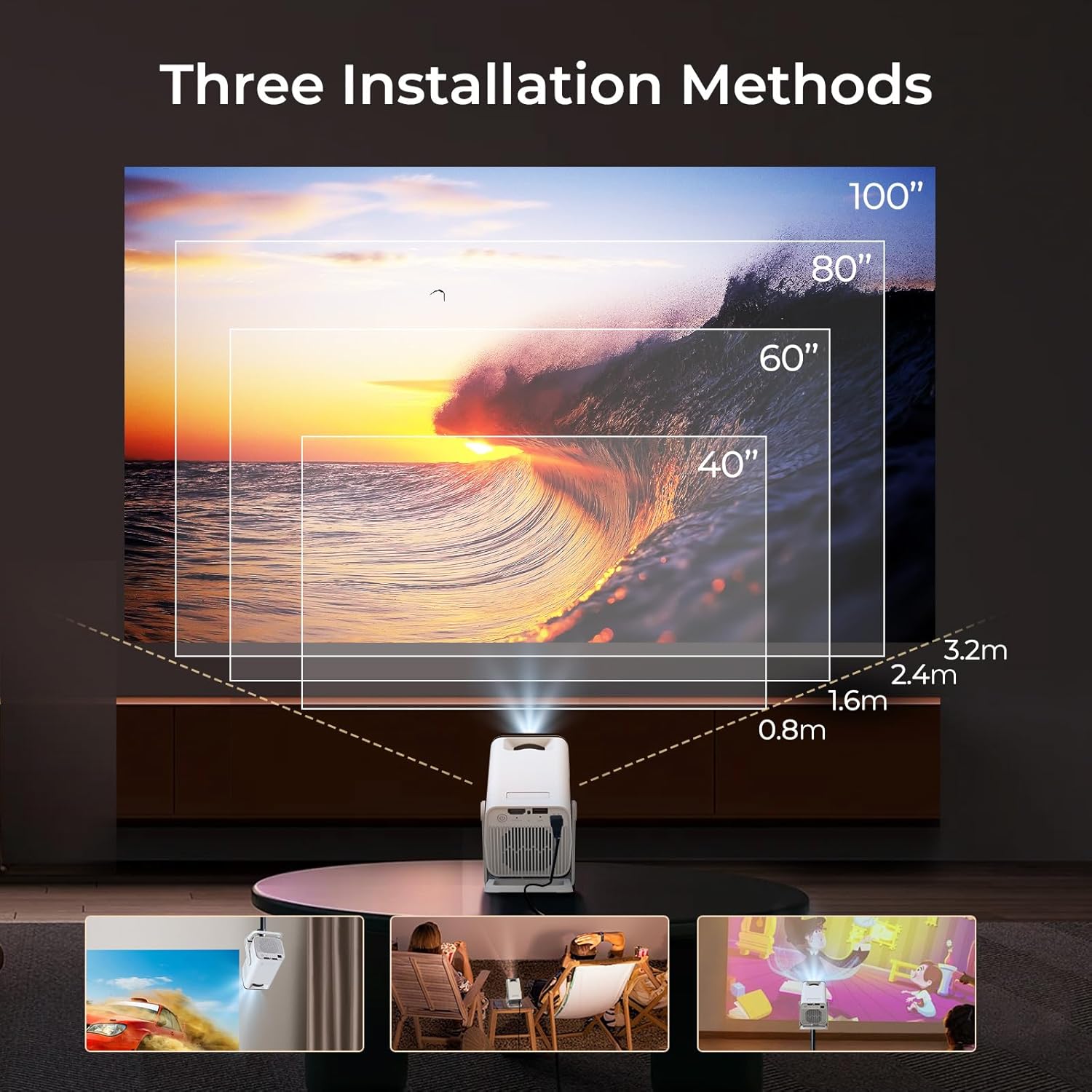
The LYNCAST N300 features a 180° rotatable design, allowing for versatile placement options.

Gambar 5.1: The projector's adjustable stand allows for various projection angles, including ceiling projection.
- Selehake proyektor ing permukaan sing stabil.
- Adjust the projector's angle using its integrated stand to project onto a wall, ceiling, or screen. The stand supports up to 180° rotation.
5.3 Imbuhan Fokus
To achieve a clear image, manually adjust the focus.

Gambar 5.2: Location of the manual focus wheel on the projector.
- Uripake proyektor lan tampilake gambar.
- Rotate the focus wheel located on the side of the projector until the image appears sharp and clear.
5.4 Koreksi Keystone Otomatis
The LYNCAST N300 features automatic keystone correction to adjust distorted images caused by angled projection. This feature automatically squares the image.
- The projector will automatically detect and correct vertical keystone distortion.
- If further adjustments are needed, refer to the on-screen display (OSD) settings for manual keystone correction options.
6. Instruksi Operasi
6.1 Connecting External Devices via HDMI
Connect devices such as TV sticks, laptops, gaming consoles, or TV boxes using an HDMI cable.
- Sambungake salah siji pucuk kabel HDMI menyang port HDMI ing proyektor.
- Connect the other end to the HDMI output of your external device.
- Select the HDMI input source from the projector's menu.
6.2 Konektivitas USB
Port USB ngidini sampeyan muter media files langsung saka piranti panyimpenan USB.
- Insert your USB storage device into the USB port on the projector.
- Navigate to the media player application on the projector's home screen to browse and play files.
6.3 Wireless Connectivity (WiFi 6 & Bluetooth 5.4)
The projector supports WiFi 6 for faster and more stable internet connection and Bluetooth 5.4 for audio devices.
6.3.1 Nyambung menyang WiFi
- Go to the projector's Settings menu.
- Select "Network & Internet" or "WiFi".
- Choose your desired WiFi network and enter the password if prompted.
6.3.2 Nyambungake Piranti Bluetooth
- Go to the projector's Settings menu.
- Select "Connected Devices" or "Bluetooth".
- Uripake Bluetooth lan goleki piranti sing kasedhiya.
- Select your Bluetooth speaker or headphones to pair.
6.4 Screen Mirroring (Phone Link)
Mirror your iOS or Android device screen to the projector.

Gambar 6.1: Screen mirroring from a smartphone to the projector.
6.4.1 For iOS Devices (AirPlay)
- Ensure both your iOS device and the projector are connected to the same WiFi network.
- On your iOS device, open Control Center and tap "Screen Mirroring".
- Pilih proyektor saka dhaptar piranti sing kasedhiya.
6.4.2 For Android Devices (Miracast/Google Cast)
- Ensure both your Android device and the projector are connected to the same WiFi network.
- On your Android device, go to Settings and look for "Cast", "Screen Mirroring", or "Wireless Display". The exact name may vary by device.
- Pilih proyektor saka dhaptar piranti sing kasedhiya.
6.5 Using Android 13 Smart Features
The LYNCAST N300 runs on Android 13, providing access to a wide range of applications.

Gambar 6.2: Android 13 interface showing pre-installed applications.
- Aplikasi sing wis diinstal: Access popular streaming services like Netflix, YouTube, Prime Video, and Disney+ directly from the home screen.
- App Store: Ngundhuh lan nginstal aplikasi tambahan saka toko app terpadu.
- Pandhu arah: Gunakake remot kontrol kanggo navigasi antarmuka Android.
7. Pangopènan
7.1 Ngresiki Lensa
- Gunakake kain alus lan tanpa serat sing dirancang khusus kanggo lensa optik.
- Gently wipe the lens to remove dust or smudges. Do not use abrasive cleaners or excessive force.
7.2 Ngresiki Awak Proyektor
- Usap sisih njaba proyektor nganggo kain alus lan garing.
- Aja nggunakake pembersih cair utawa pelarut.
7.3 Panyimpenan
- Yen ora digunakake kanggo wektu sing suwe, simpen proyektor ing papan sing adhem lan garing, adoh saka srengenge langsung lan suhu sing ekstrem.
- Consider using the original packaging or a protective case to prevent dust accumulation and damage.
8. Ngatasi masalah
| Masalah | Kemungkinan Penyebab | Solusi |
|---|---|---|
| Ora ana daya | kabel daya ora nyambung; stopkontak rusak | Priksa manawa kabel daya wis disambungake kanthi aman; Coba stopkontak liyane. |
| Ora ana gambar | Incorrect input source; Loose HDMI cable; Device not powered on | Select correct input source; Check HDMI cable connection; Ensure connected device is powered on. |
| Gambar burem | Fokus ora diatur; Proyektor kejauhan/cedhak banget | Adjust the manual focus wheel; Reposition the projector for optimal distance. |
| Ora ana swara | Volume too low; Muted; Incorrect audio output selected; Bluetooth device not connected | Increase volume; Unmute; Check audio settings; Reconnect Bluetooth device. |
| Remote kontrol ora bisa digunakake | Batere mati; Hambatan antarane remot lan proyektor | Ganti batere; Priksa manawa panrima IR proyektor bisa ndeleng kanthi cetha. |
| Masalah sambungan WiFi | Incorrect password; Out of range; Router issues | Verify WiFi password; Move projector closer to router; Restart router. |
9. Spesifikasi
| Fitur | Rincian |
|---|---|
| Merk | LYNCAST |
| Jeneng Model | Netflix VisualCube N300 (X1AA) |
| Sistem Operasi | Android 13 |
| Teknologi Tampilan | LED, Laser |
| Resolusi Native | 1920 x 1080 (1080P) |
| Dhukungan Resolusi Maksimum | 3840 Pixels (4K) |
| Rasio Kontras | 1000:1 |
| Teknologi Konektivitas | Bluetooth 5.4, WiFi 6 |
| Antarmuka Hardware | HDMI, USB |
| Fitur Khusus | Automatic Obstacle Avoidance (Auto Keystone), 180° Rotation |
| Piranti sing kompatibel | Speaker, Game Console, Laptop, Smartphone, Tablet, TV Stick |
| Dimensi produk | 10 x 10 x 17 cm |
| Bobot produk | 770 g |
| Tipe Pemasangan | Gunung meja |
10. Warranty lan Dhukungan
For warranty information and technical support, please refer to the warranty card included in your package or visit the official LYNCAST websitus. Simpen kuitansi tuku minangka bukti tuku.
LYNCAST Official Websitus: LYNCAST Brand Store on Amazon
11. Demonstrasi Video Produk
Watch video iki kanggo visual liwatview of the LYNCAST N300 Mini Smart Projector's features and usage.
Klip 11.1: LYNCAST N300 Projector overview, demonstrating features like Netflix compatibility, portable design, 270° rotation, manual focus, and phone link (screen mirroring).