
1. Pambuka
Thank you for choosing the Dierya x TMKB M1 Wireless Gaming Mouse. This manual provides detailed instructions on how to set up, operate, and maintain your new gaming mouse. The M1 mouse offers versatile connectivity, high-precision tracking, and customizable features to enhance your gaming and productivity experience.
2. Produk Liwatview
2.1 Komponen lan Kontrol
Familiarize yourself with the various buttons and features of your Dierya M1 mouse:
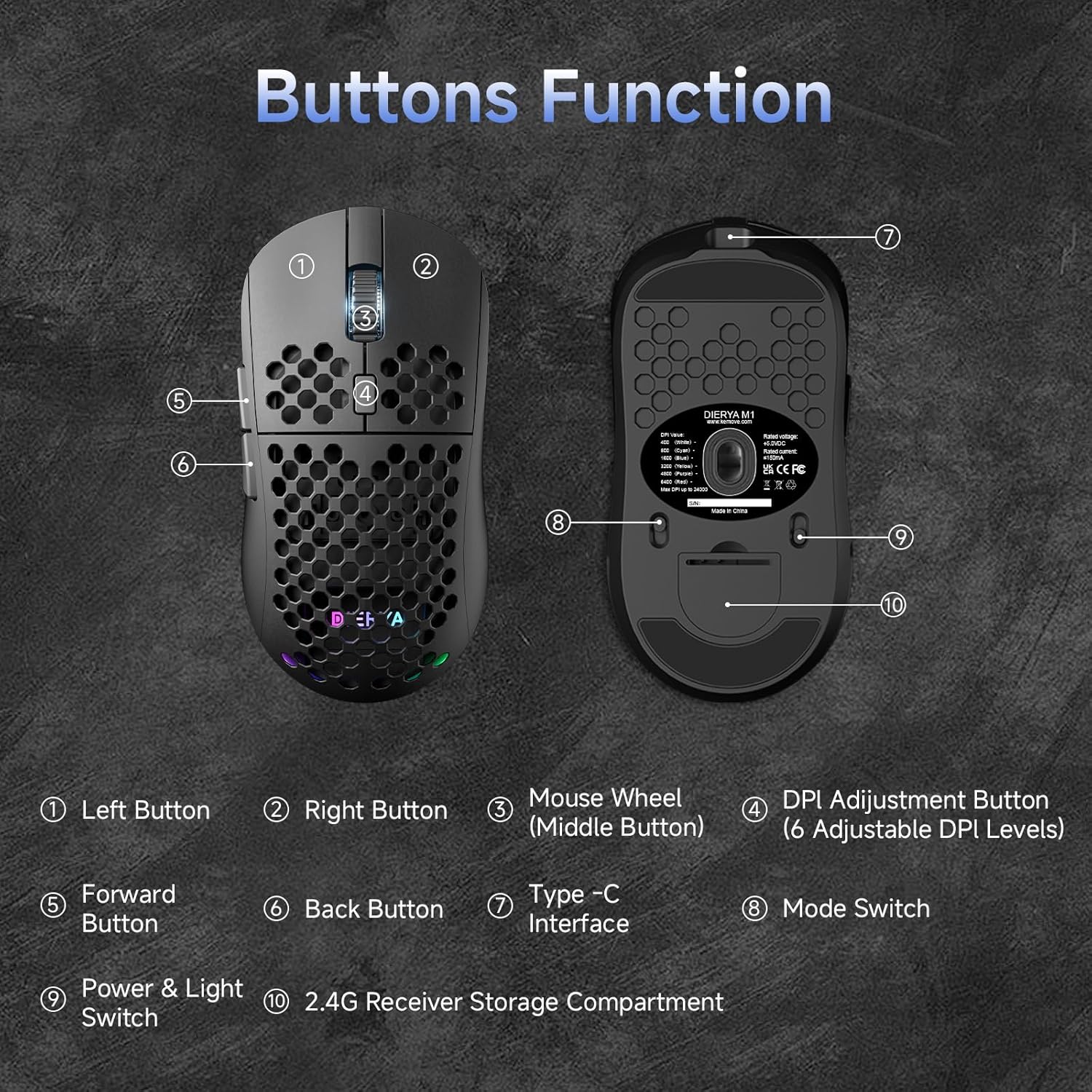
This diagram illustrates the various components of the Dierya M1 wireless gaming mouse. It highlights the Tombol Ngiwa (1), Tombol tengen (2), Mouse Wheel (Middle Button) (3), DPI Adjustment Button (4) with 6 adjustable DPI levels, Forward Button (5), Back Button (6), Type-C Interface (7) for charging and wired connection, Ngalih Mode (8) for selecting connection type, Power & Light Switch (9), lan ing 2.4G Receiver Storage Compartment (10) located on the underside.
2.2 Fitur Utama
- Sensor Optik 24,000 DPI: Adjustable DPI range from 200 to 24,000, with 6 preset levels (400-6400 DPI).
- Konektivitas Tri-Mode: Supports ultra-fast 2.4GHz wireless, energy-efficient Bluetooth 5.2, and stable USB-C wired connections.
- Urip baterei dawa: 1000mAh battery provides up to 180 hours in ECO mode or 48 hours with RGB lighting, with 1-hour fast charging.
- Desain entheng & ergonomis: Weighs only 90g with a honeycomb shell for breathability and a symmetrical design (125x63x41 mm).
- Tombol sing bisa diprogram: 6 customizable buttons via the M1 Driver software (Windows only).
- Lampu RGB Dinamis: 13 integrated RGB lighting effects with 16.8 million customizable colors.
- Kinerja dhuwur: 125-1000 Hz polling rate, 300 IPS tracking speed, and 35G acceleration.
- Saklar tahan lama: Equipped with Huano switches rated for 20 million clicks and 100% PTFE feet for smooth gliding.
3. Setup
3.1 Ngisi daya Mouse
Before first use, it is recommended to fully charge the mouse. Connect the provided USB-C cable to the Type-C Interface (7) on the mouse and the other end to a USB power source (e.g., computer USB port, USB wall adapter).
- The mouse charges in approximately 1 hour.
- The scroll wheel LED will indicate charging status (e.g., red for charging, green for fully charged).
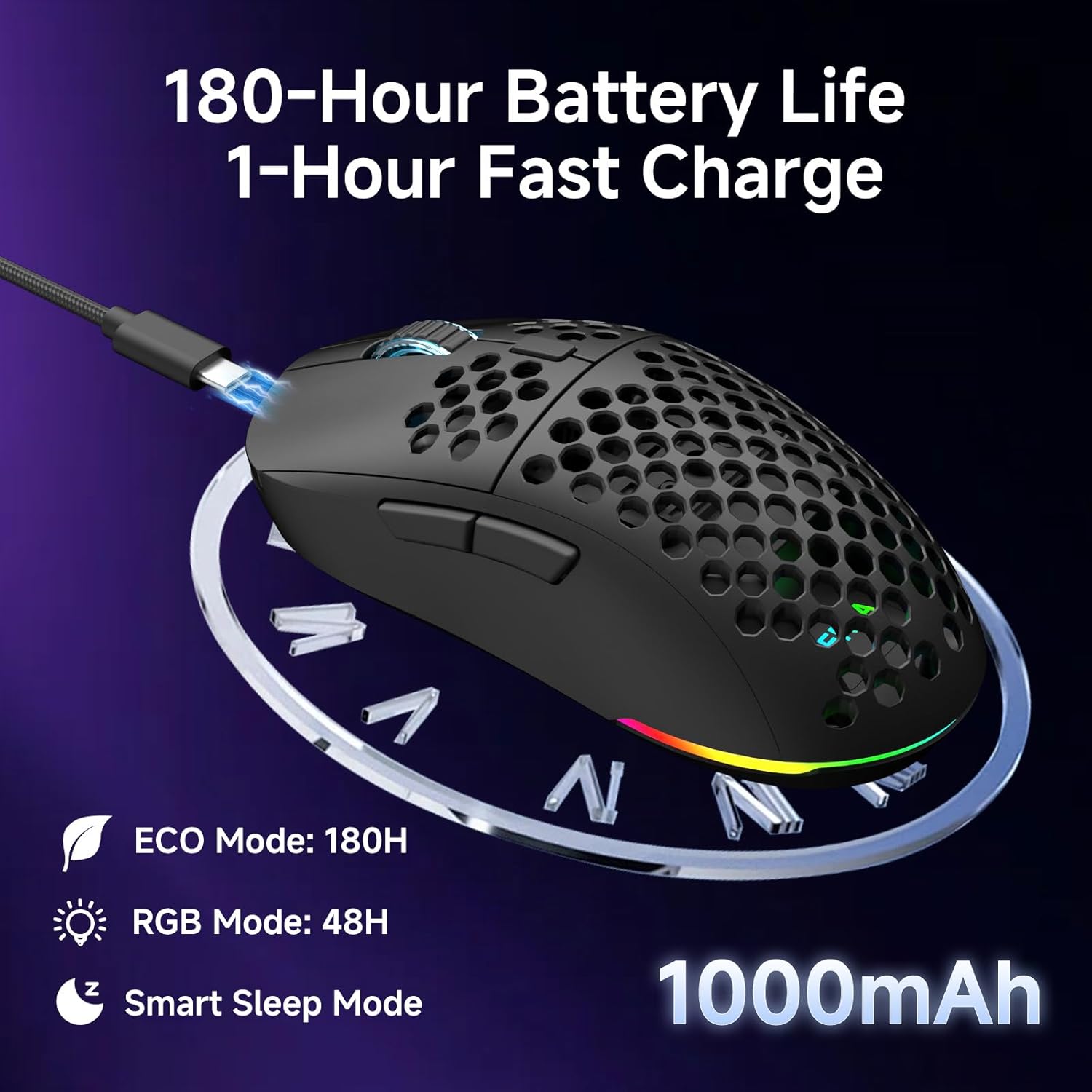
The Dierya M1 mouse features a 1000mAh battery, providing up to 180 hours of use in ECO mode or 48 hours with RGB lighting enabled. It supports fast charging, reaching full capacity in approximately 1 hour via the included USB-C cable. The mouse also includes a smart sleep mode to conserve power during inactivity.
3.2 Nyambungake Mouse
The Dierya M1 mouse offers three connection modes: 2.4GHz Wireless, Bluetooth 5.2, and USB-C Wired.

The Dierya M1 mouse supports three flexible connection modes: Bluetooth 5.2 for energy-efficient pairing with up to two devices, 2.4GHz Wireless via a USB dongle for ultra-fast response, and a stable USB-C Wired connection for charging and direct use. Each mode offers a different polling rate, with 2.4GHz and wired modes providing 1000Hz, and Bluetooth offering 125Hz.
3.2.1 2.4GHz Sambungan Nirkabel
- Locate the 2.4G receiver in the storage compartment (10) on the underside of the mouse.
- Colokake panrima 2.4G menyang port USB sing kasedhiya ing komputer sampeyan.
- Set the Mode Switch (8) on the underside of the mouse to the '2.4G' position.
- The mouse should connect automatically. The polling rate for this mode is 1000 Hz.
3.2.2 Bluetooth 5.2 Sambungan
- Set the Mode Switch (8) on the underside of the mouse to the 'BT' position.
- Ing komputer utawa piranti, bukak setelan Bluetooth lan telusuri piranti anyar.
- Select 'Dierya M1' from the list of available devices to pair.
- The mouse supports Bluetooth 5.2 and has a polling rate of 125 Hz in this mode.
3.2.3 Sambungan Kabel USB-C
- Connect the USB-C cable to the Type-C Interface (7) on the mouse.
- Sambungake ujung liyane kabel USB-C menyang port USB sing kasedhiya ing komputer.
- The mouse will automatically switch to wired mode and begin charging. The polling rate for this mode is 1000 Hz.
4. Instruksi Operasi
4.1 Imbuhan DPI
The Dierya M1 mouse features a dedicated DPI Adjustment Button (4) to cycle through preset DPI levels. The scroll wheel LED color indicates the current DPI setting.
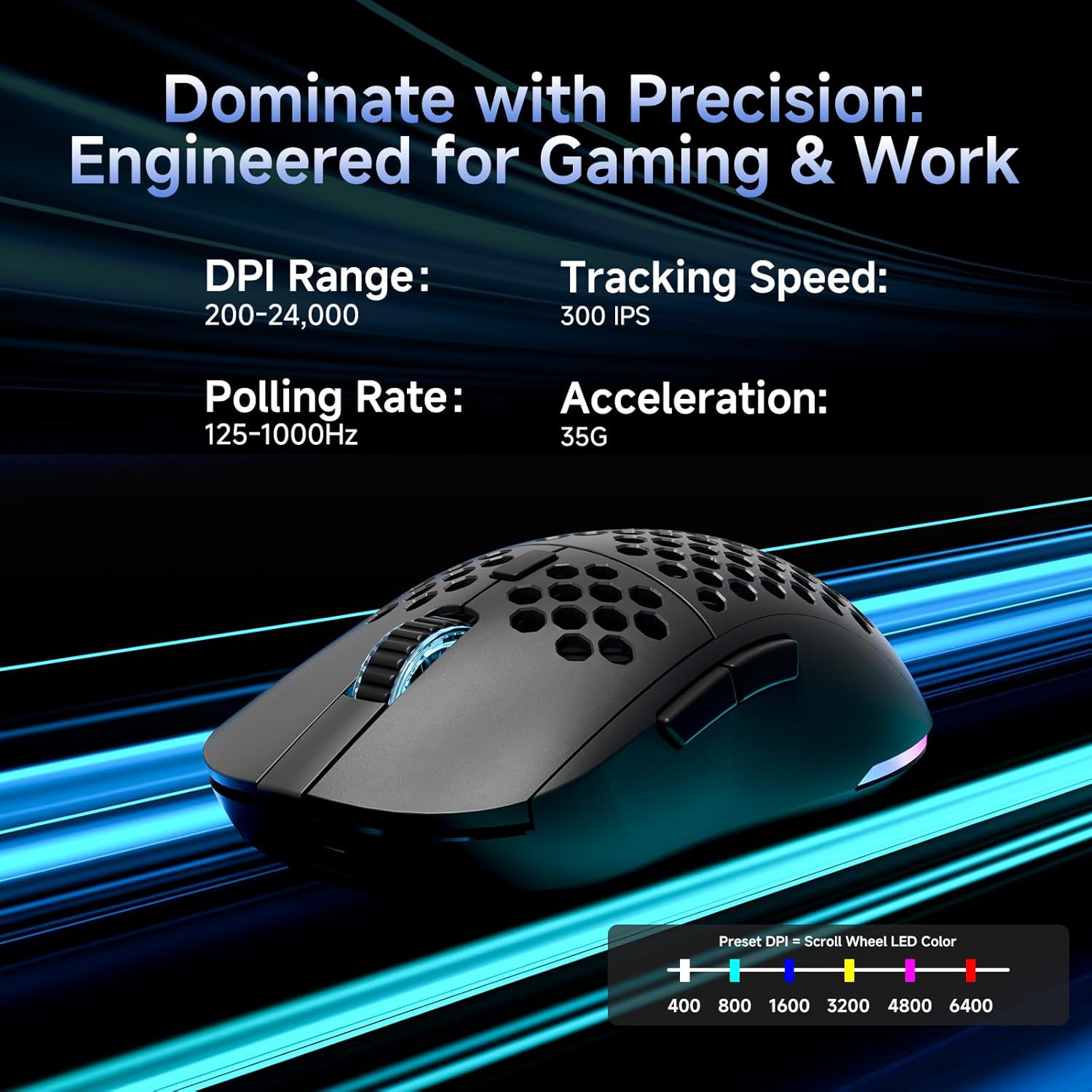
This image details the performance specifications of the Dierya M1 mouse, including a DPI range of 200-24,000, a tracking speed of 300 IPS, a polling rate of 125-1000Hz, and 35G acceleration. It also shows the preset DPI levels (400, 800, 1600, 3200, 4800, 6400) and the color indicators on the scroll wheel for each setting.
- Press the DPI Adjustment Button (4) to cycle through the 6 default DPI settings: 400, 800, 1600, 3200, 4800, and 6400 DPI.
- Each DPI level is indicated by a specific color on the scroll wheel LED.
- For custom DPI settings and a wider range (200-24,000 DPI), use the M1 Driver software.
4.2 Kontrol Lampu RGB
The Dierya M1 mouse features dynamic RGB lighting. You can control the lighting effects and colors using the M1 Driver software.
- The mouse has 13 built-in RGB lighting effects.
- Use the M1 Driver software to customize colors (16.8 million options), brightness, and speed of the lighting effects.
- The Power & Light Switch (9) on the underside can be used to turn the lighting on or off.
4.3 Tombol lan Piranti Lunak sing Bisa Diprogram
The M1 mouse has 6 programmable buttons that can be customized using the dedicated M1 Driver software.

The Dierya M1 driver software, currently available for Windows, allows users to customize various aspects of the mouse. This includes reassigning the 6 programmable buttons, creating macros, adjusting DPI settings, modifying the polling rate, and personalizing the 13 dynamic RGB lighting effects with 16.8 million colors.
- Kompatibilitas Piranti Lunak: The M1 Driver software is currently only available for Windows operating systems.
- Tugas Kunci: Reassign functions to any of the 6 programmable buttons (Left, Right, Middle, DPI, Forward, Back).
- Nggawe Makro: Create and assign complex macros to streamline in-game actions or productivity tasks.
- DPI & Polling Rate: Fine-tune DPI settings beyond the presets and adjust the polling rate.
- Kustomisasi RGB: Personalize lighting effects, colors, and patterns.
- Profile Manajemen: Simpen lan muat pro sing bedafiles for various games or applications.
4.4 Mode Ngirit Daya
The M1 mouse is designed with automatic power-saving features to extend battery life:
- The mouse will enter an automatic power-saving mode after 1-5 minutes of inactivity.
- This inactivity time can be adjusted via the M1 Driver software.
- Kanggo nggugah mouse, cukup obahake utawa klik tombol apa wae.
5. Pangopènan
Proper maintenance ensures the longevity and optimal performance of your Dierya M1 mouse.
- Reresik: Gunakake kain sing alus lan garing kanggo ngusap permukaan mouse. Kanggo rereget wangkal, a rada damp kain bisa digunakake, nanging mesthekake ora ana Kelembapan lumebu mouse. Ngindhari bahan kimia sing atos utawa pembersih abrasif.
- Pangopènan Sensor: Tansah sensor optik ing sisih ngisor mouse resik lan bebas saka bledug utawa lebu kanggo njamin pelacakan sing akurat.
- Perawatan baterei: Aja kerep ngisi daya batere nganti kebak. Kanggo panyimpenan jangka panjang, isi daya mouse nganti udakara 50% lan simpen ing panggonan sing adhem lan garing.
- Panyimpenan: Yen ora digunakake, simpen mouse ing lingkungan sing resik lan garing adoh saka suhu sing ekstrem.
6. Ngatasi masalah
If you encounter issues with your Dierya M1 mouse, refer to the following common troubleshooting steps:
| Masalah | Kemungkinan Penyebab | Solusi |
|---|---|---|
| Mouse ora nanggapi (2.4GHz) | Low battery, receiver unplugged, incorrect mode, interference. | Charge the mouse. Ensure 2.4G receiver is securely plugged in. Set Mode Switch to '2.4G'. Try a different USB port. Reduce distance to receiver. |
| Mouse ora nanggapi (Bluetooth) | Low battery, incorrect mode, not paired, Bluetooth off on device. | Charge the mouse. Set Mode Switch to 'BT'. Ensure Bluetooth is enabled on your device. Re-pair the mouse in Bluetooth settings. |
| Mouse ora nanggapi (Kabel) | Cable not connected, faulty cable/port. | Ensure USB-C cable is securely connected to both mouse and computer. Try a different USB port or cable. |
| Pelacakan sing ora akurat | Dirty sensor, unsuitable surface, incorrect DPI. | Clean the optical sensor. Use a mouse pad or a clean, non-reflective surface. Adjust DPI settings. |
| Lampu RGB ora bisa digunakake | Lighting switched off, low battery, software issue. | Check Power & Light Switch (9). Charge the mouse. Check settings in M1 Driver software. |
| Tombol ora bisa diprogram | M1 Driver not installed/running, not on Windows. | Ensure M1 Driver software is installed and running (Windows only). Check software settings. |
7. Spesifikasi
| Jeneng Model | M1 |
| Merk | Dierya |
| Teknologi Konektivitas | Nirkabel 2.4GHz, Bluetooth 5.2, Kabel USB-C |
| Teknologi Deteksi Gerakan | Optik |
| DPI Range | 200 - 24,000 DPI (6 preset levels: 400, 800, 1600, 3200, 4800, 6400) |
| Polling Rate | 125-1000 Hz |
| Kacepetan nelusuri | 300 IPS |
| Akselerasi | 35G |
| Jumlah Tombol | 6 (Bisa diprogram) |
| Kapasitas baterei | 1000 mAh Lithium-ion |
| Urip baterei | Up to 180 hours (ECO mode), 48 hours (RGB mode) |
| Wektu Ngisi daya | Kira-kira. 1 jam |
| Bobot | 90 XNUMXgm |
| ukuran | 125 x 63 x 41 mm |
| Tipe Ngalih | Huano (20 yuta klik) |
| Bahan Kaki | 100% PTFE |
| Kompatibilitas Sistem Operasi | Windows, macOS, Linux, Chrome OS |
| Driver Software Compatibility | Windows mung |
8. Warranty lan Dhukungan
8.1 Garansi Produsen
The Dierya M1 Wireless Gaming Mouse comes with a Garansi pabrikan 1 taun. Garansi iki nyakup cacat ing bahan lan pengerjaan ing panggunaan normal. Mangga nyimpen bukti tuku kanggo claims babar pisan.
8.2 Dhukungan Pelanggan
For further assistance, technical support, or warranty inquiries, please refer to the official Dierya website or contact your retailer. Ensure you have your product model (M1) and proof of purchase ready when seeking support.