
1. Pambuka
Thank you for choosing the TCL Gaming Monitor 25G54. This monitor is designed to provide an immersive gaming experience with its advanced display technology and high performance. This manual will guide you through the setup, operation, and maintenance of your new monitor.
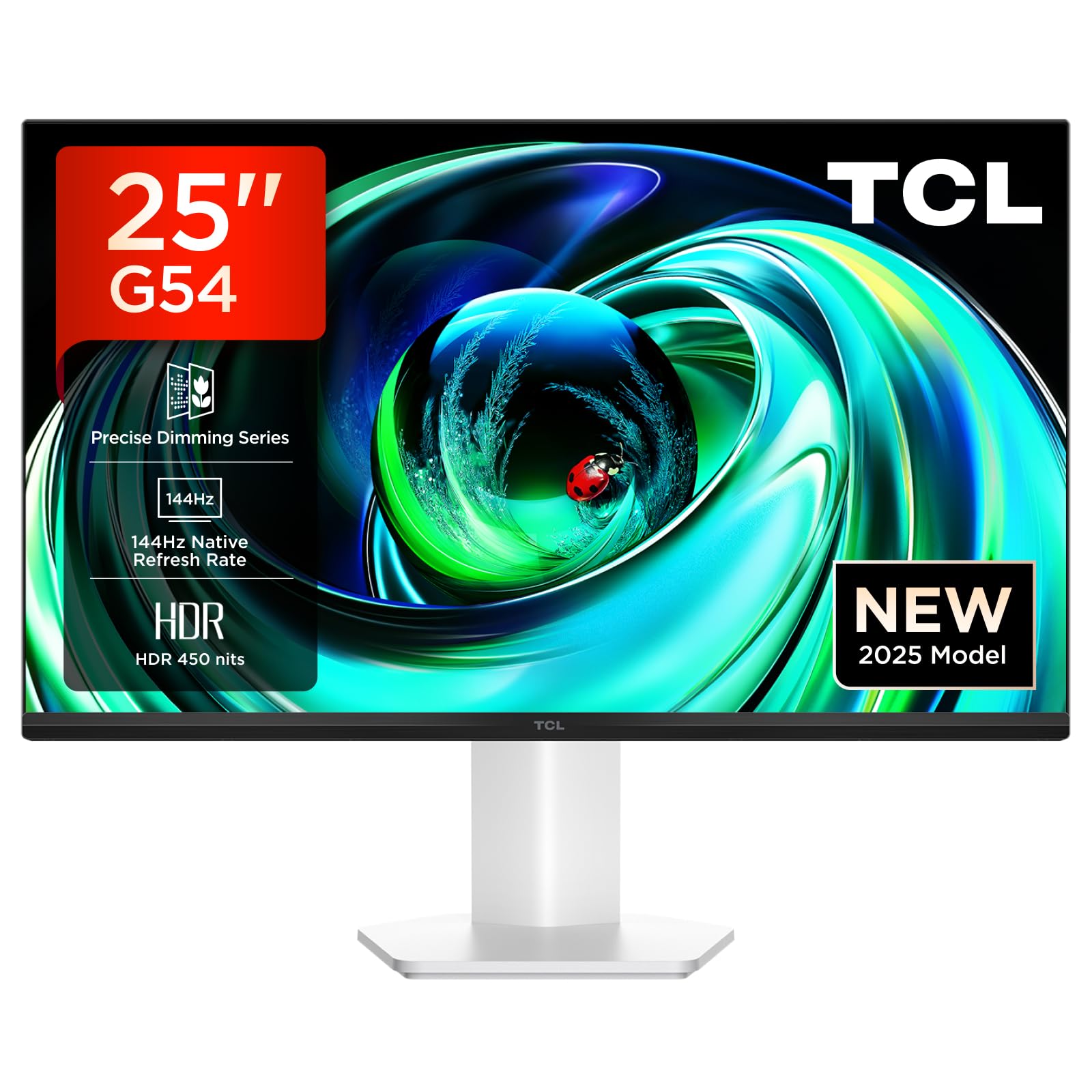
Gambar 1: Ngarep view of the TCL Gaming Monitor 25G54.
2. Informasi Safety
Waca kabeh instruksi kasebut kanthi teliti sadurunge nggunakake monitor. Simpen manual iki kanggo referensi ing mangsa ngarep.
- Aja mbukak monitor kanggo udan utawa lembab kanggo nyegah geni utawa kejut listrik.
- Aja mbukak monitor casing. Ora ana bagean sing bisa dilayani pangguna ing njero. Waca kabeh layanan kanggo personel qualified.
- Selehake monitor ing permukaan sing stabil lan rata supaya ora tiba.
- Priksa manawa ventilasi sing tepat ing sakubenge monitor. Aja ngalangi bukaan ventilasi.
- Gunakake mung adaptor daya lan kabel sing diwenehake dening pabrikan.
- Cabut colokan daya saka stopkontak yen monitor ora bakal digunakake sajrone wektu sing suwe.
3. Isi Paket
Priksa manawa kabeh item ana ing paket sampeyan:
- TCL Gaming Monitor 25G54
- Monitor Stand (Base lan Neck)
- Kabel Daya
- Kabel HDMI Kab
- Manual pangguna lan Kartu Garansi
Note: Specific cable types (e.g., DisplayPort) may vary by region or package.
4. Setup
4.1 Ngrakit Stand
- Kasebut kanthi teliti, copot komponen monitor lan ngadeg saka kemasan.
- Pasang gulu ngadeg menyang panel monitor. Priksa manawa klik kanthi aman ing panggonane utawa diikat nganggo sekrup kaya sing dituduhake ing pandhuan wiwitan cepet.
- Pasang basis ngadeg menyang gulu ngadeg, ngamanake nganggo sekrup sing kasedhiya.
- Selehake monitor sing dipasang ing meja sing stabil.
4.2 Nyambungake Monitor
The monitor supports various input options. Connect the appropriate cable from your computer or gaming console to the monitor.
- Sambungan HDMI: Use an HDMI cable to connect your device to the monitor's HDMI port.
- Sambungan DisplayPort: Use a DisplayPort cable to connect your device to the monitor's DisplayPort.
- Koneksi USB: Gunakake port USB kanggo nyambungake peripheral.

Gambar 2: Mburi view showing the monitor's connectivity ports including HDMI, DisplayPort, and USB.
4.3 Daya Ngaktifake
- Sambungake kabel daya menyang input daya monitor banjur menyang stopkontak.
- Press the power button, usually located on the back or bottom of the monitor, to turn it on.
5. Instruksi Operasi
5.1 Menu Tampilan ing Layar (OSD).
The OSD menu allows you to adjust various monitor settings. Access it using the joystick button, typically located on the back of the monitor.

Figure 3: Illustration of the joystick button for OSD menu navigation.
Setelan OSD umum:
- Padhang/Kontras: Setel tingkat luminance lan kontras tampilan.
- Setelan warna: Modify color temperature, gamma, and color space (e.g., DCI-P3, sRGB).
- Sumber Input: Manually select the active input (HDMI, DisplayPort).
- Fitur Game: Enable/disable FreeSync, adjust response time, and other gaming-specific enhancements.
- Mode Gambar: Select preset display modes for different content types (e.g., Standard, Game, Movie).
5.2 Pangaturan Ergonomis
Stand monitor nawakake pangaturan ergonomis kanthi optimal viewing panglipur.
- Ngiringake: Setel sudut vertikal layar.
- Puteran: Puter layar kanthi horisontal.
- Imbuhan Dhuwur: Munggah utawa mudhunake layar nganti tingkat mripat.
- Pivot: Puter layar menyang orientasi mujur utawa malang.

Figure 4: Illustration of the monitor's ergonomic stand, showing tilt and height adjustment capabilities.
6. Fitur
The TCL Gaming Monitor 25G54 incorporates several key technologies for superior performance:
- Teknologi LED Mini: Combines QLED and OLED advantages for precise, pixel-level illumination, offering sharp contrast and a wide color gamut.
- Precise Dimming Series: Enhances overall image quality by optimizing light and shadow, providing a high-quality visual experience.
- HDR 400 nit Brightness: With a peak brightness of 450 nits and a contrast ratio of 4,500,000:1, it delivers extended dynamic range and vivid details in both dark and bright areas.
- 144Hz Refresh Rate: Ensures smooth and fluid images in all gaming scenes and actions, minimizing motion blur.
- 1ms (GTG) Response Time: An extremely fast response time reduces ghosting and blurring, allowing for quick target acquisition.
- 93% DCI-P3 Wide Color Gamut: Displays vibrant colors with professional-level accuracy, revealing an immersive world of color.
- TÜV Rheinland Flicker-Free & Low Blue Light: Certified for eye protection, this mode blocks harmful blue light and eliminates flicker for prolonged viewing panglipur.

Gambar 5: Overview of the TCL 25G54 Mini LED Monitor's key features.
7. Pangopènan
Pangopènan sing tepat njamin umur dawa lan kinerja optimal monitor sampeyan.
- Reresik layar: Lap layar kanthi alon-alon nganggo kain sing alus lan tanpa serat. Kanggo tandha bandel, gunakake solusi reresik khusus monitor sing ditrapake ing kain, ora langsung menyang layar.
- Reresik Casing: Gunakake kain sing alus lan garing kanggo ngusap monitor casing. Ngindhari pembersih abrasif.
- Ventilasi: Ensure the ventilation openings are clear of dust and debris. Use compressed air to clean if necessary.
- Daya Mati: Always turn off and unplug the monitor before cleaning or if it will be unused for an extended period.
8. Ngatasi masalah
Yen sampeyan nemoni masalah karo monitor, waca solusi umum ing ngisor iki:
| Masalah | Kemungkinan Penyebab | Solusi |
|---|---|---|
| Ora ana gambar ing layar | Power cable disconnected, input cable loose, incorrect input source selected. | Check power and input cable connections. Select correct input source via OSD. |
| Gambar burem utawa kleru | Incorrect resolution, faulty cable, graphics driver issue. | Set display resolution to 1920x1080. Try a different cable. Update graphics drivers. |
| Layar kelip-kelip | Refresh rate mismatch, faulty cable, external interference. | Ensure refresh rate is set to 144Hz. Try a different cable. Check for nearby electronic devices. |
| Ora ana swara | Audio cable not connected, volume too low, incorrect audio output selected. | Connect headphones to the monitor's audio output. Adjust volume. Select monitor as audio output on your device. |
Yen masalah tetep sawise nyoba solusi kasebut, hubungi dhukungan pelanggan TCL.
9. Spesifikasi
| Fitur | Spesifikasi |
|---|---|
| Merk | TCL |
| Nomer Model | 25G54 |
| Ukuran Layar | 25 inchi |
| Resolusi | 1920x1080 (FHD) |
| Tipe Panel | IPS |
| Refresh Rate | 144 Hz |
| Wektu Respon | 1 ms (GTG) |
| padhang | 450 nits |
| Rasio Kontras | 4,500,000:1 |
| Dhukungan HDR | VESA Display HDR 400 |
| Warna Gamut | 93% DCI-P3 |
| Viewing Angle | 178 derajat |
| Konektivitas | 1x HDMI, 1x DisplayPort, 4x USB, Headphone Output |
| Sinkronisasi adaptif | FreeSync |
| Ukuran (DxWxH) | 18.2 x 55.6 x 43.9 cm |
| Bobot | 4.39 kg |
| Fitur Khusus | Mini LED, Flicker-Free, Low Blue Light |
10. Warranty lan Dhukungan
Your TCL Gaming Monitor 25G54 comes with a 2-year manufacturer's warranty. For warranty claims, technical support, or service inquiries, please visit the official TCL support websitus utawa hubungi pengecer lokal sampeyan.
Kanggo informasi luwih lengkap, bukak ing TCL Store ing Amazon.
11. Informasi Daur Ulang
Please dispose of this product responsibly. Electronic waste should not be disposed of with household waste. Follow local regulations for the proper disposal of electronic devices. This helps protect the environment and human health.