
1. Pambuka
This manual provides detailed instructions for the installation, configuration, and operation of the Intelbras iNVD 5232 32-Channel IP Digital Video Recorder. Please read this manual thoroughly before using the device to ensure proper functionality and to prevent damage.
The Intelbras iNVD 5232 is designed for professional surveillance applications, offering advanced features for recording, monitoring, and managing IP camera feeds.
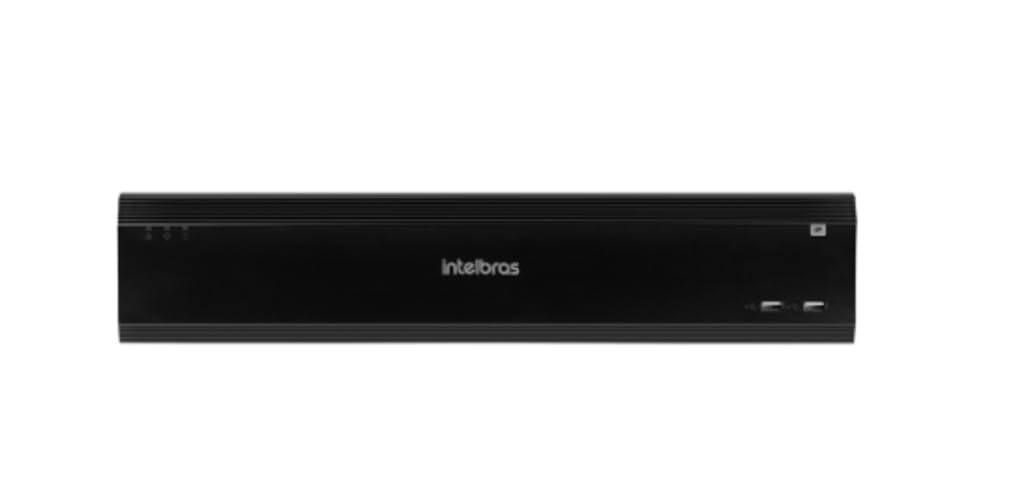
Figure 1: Intelbras iNVD 5232 Digital Video Recorder. This image shows the front panel of the iNVD 5232 unit, featuring a sleek black design with the Intelbras logo and USB ports.
2. Informasi Safety
Tindakake pancegahan keamanan ing ngisor iki kanggo nyegah ciloko lan kerusakan piranti:
- Priksa manawa sumber daya voltage cocog karo syarat piranti.
- Aja mbabarake piranti kasebut ing lembab, udan, utawa suhu sing ekstrem.
- Aja nyelehake piranti ing sinar srengenge langsung utawa cedhak karo sumber panas.
- Aja mbukak piranti casing. Waca kabeh layanan kanggo personel qualified.
- Gunakake mung aksesoris sing ditemtokake dening pabrikan.
- Pasang piranti ing lemah sing bener kanggo nyegah sengatan listrik.
3. Isi Paket
Priksa manawa kabeh item ana ing paket kasebut:
- Intelbras iNVD 5232 Digital Video Recorder Unit
- Adaptor Daya
- Mouse USB
- Sekrup kanggo Instalasi HDD
- Pandhuan wiwitan cepet
- CD-ROM (isine piranti lunak lan pandhuan lengkap)
4. Produk Liwatview
4.1 Panel ngarep
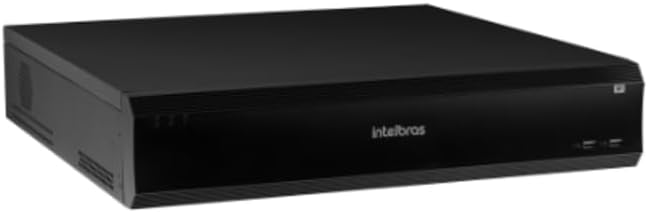
Figure 2: Front Panel of the iNVD 5232. This image displays the front of the DVR, showing LED indicators for power and status, along with two USB ports for peripheral connections.
- Daya LED: Nuduhake status daya.
- LED Status: Nuduhake status operasional sistem.
- Port USB: Kanggo nyambungake mouse, drive USB, utawa periferal liyane.
4.2 Panel mburi

Figure 3: Rear Panel of the iNVD 5232. This image details the rear connections, including power input, network ports, video outputs (HDMI, VGA), audio inputs/outputs, and alarm terminals.
- Input daya: Sambungake adaptor daya sing kasedhiya.
- Output HDMI: Connect to an HDMI-compatible monitor.
- Output VGA: Connect to a VGA-compatible monitor.
- LAN Pelabuhan: Connect to your network for IP camera communication and remote access.
- Audio In/Out: Kanggo nyambungake piranti audio eksternal.
- Weker mlebu/metu: For connecting external alarm sensors and actuators.
- Port USB: Port USB tambahan kanggo piranti periferal.
5. Setup
5.1 Instalasi Hardware
- Instal Hard Drive (yen durung diinstal sadurunge): Bukak DVR casing, mount the hard drive using the provided screws, and connect the SATA power and data cables.
- Sambungake Monitor: Sambungake monitor menyang port output HDMI utawa VGA.
- Nyambung Mouse: Colokke mouse USB menyang salah siji port USB.
- Sambungake Jaringan: Connect an Ethernet cable from the LAN port to your network router or switch.
- Sambungake Daya: Plug the power adapter into the DVR's power input and then into a power outlet. The device will power on automatically.
5.2 Konfigurasi wiwitan
Upon first boot, the system will guide you through an initial setup wizard:
- Pilihan Basa: Pilih basa sing disenengi.
- Pangaturan sandhi: Gawe sandhi administrator sing kuwat.
- Setelan jaringan: Konfigurasi alamat IP, subnet mask, gateway, lan DNS. DHCP biasane diaktifake kanthi gawan.
- Tanggal lan Wektu: Setel tanggal, wektu, lan zona wektu sing bener.
- Inisialisasi HDD: Format the installed hard drive for recording.
- IP Camera Search and Add: The system will scan for available IP cameras on the network. Select and add your cameras.
6. Ngoperasikake
6.1 Urip View
After initial setup, the system will display the live view saka kamera sing nyambung. Sampeyan bisa ngalih antarane kamera tunggal view, multi-camera grids, and sequence views using the on-screen controls or mouse.
6.2 Manajemen ngrekam
- Jadwal Rekaman: Configure continuous, motion-detection, or alarm-triggered recording schedules for each camera.
- Rekaman manual: Initiate recording manually from the live view antarmuka.
- Puter maneh: Akses direkam footage by date, time, and event type. Use the playback controls to navigate through recordings.
- Gawe serep: Export recorded video clips to a USB drive or network storage.
6.3 Akses Remote
The iNVD 5232 supports remote access via a web browser or dedicated mobile application. Ensure your network is configured for remote access (e.g., port forwarding or P2P cloud service activation).
- Web Browser: Enter the DVR's IP address into a web browser ing komputer sing disambungake menyang jaringan sing padha.
- Aplikasi seluler: Download the official Intelbras surveillance app from your device's app store. Scan the QR code on the DVR (if available) or manually enter the device ID for connection.
7. Pangopènan
7.1 Reresik
Regularly clean the exterior of the DVR with a soft, dry cloth. Do not use liquid cleaners or aerosols. Ensure ventilation openings are free from dust and obstructions.
7.2 Nganyari Firmware
Periodically check the Intelbras websitus kanggo nganyari perangkat kukuh. Nganyari firmware bisa nyedhiyakake fitur anyar, perbaikan kinerja, lan peningkatan keamanan. Tindakake pandhuan sing diwenehake karo paket nganyari perangkat kukuh kasebut kanthi teliti.
7.3 Manajemen Hard Drive
Monitor the health of your hard drives through the system's HDD management menu. Replace failing drives promptly to avoid data loss. Configure automatic overwriting of old footage kanggo njamin rekaman terus-terusan.
8. Ngatasi masalah
| Masalah | Kemungkinan Penyebab | Solusi |
|---|---|---|
| Ora ana daya | Kabel daya pedhot; adaptor daya rusak; masalah stopkontak. | Check power connections; test power adapter; try a different outlet. |
| Ora ana output video | Monitor off/disconnected; incorrect video output settings; faulty cable. | Ensure monitor is on and connected; check video cable; try a different output port or cable. |
| Cannot connect IP cameras | Network issue; incorrect camera IP address/credentials; camera not powered. | Verify network connectivity; ensure cameras are powered and configured correctly; check camera credentials. |
| Ora ngrekam | HDD not initialized/full; recording schedule not set; camera disconnected. | Initialize HDD; check recording schedule; verify camera connection and status. |
9. Spesifikasi
| Fitur | Katrangan |
|---|---|
| Model | iNVD 5232 |
| Video Input | 32 Saluran IP |
| Video Output | 1 HDMI, 1 VGA |
| Input/Output Audio | Specific ports (e.g., RCA) |
| Resolusi Rekaman | Up to 8MP (depending on camera) |
| Kemampuan Putar Ulang | Multi-channel synchronous playback |
| Panyimpenan | Multiple SATA HDD bays (HDDs not included) |
| Antarmuka Jaringan | Port Gigabit Ethernet |
| Antarmuka USB | Port USB 2.0/3.0 |
| Power Supply | DC 12V (adapter included) |
| Suhu operasi | 0°C nganti 50°C (32°F nganti 122°F) |
10. Warranty lan Dhukungan
For warranty information, please refer to the warranty card included with your product or visit the official Intelbras website. Technical support is available through Intelbras authorized service centers and online resources.
Intelbras Official Websitus: www.intelbras.com.br
Mangga siapake model produk lan nomer seri nalika ngubungi dhukungan.