
Introduction to the iMac M4
The Apple iMac M4 is a powerful all-in-one desktop computer featuring the advanced M4 chip, designed for efficiency and performance. This guide provides essential information to help you understand and utilize your new device, including its design features, display capabilities, and environmental considerations.
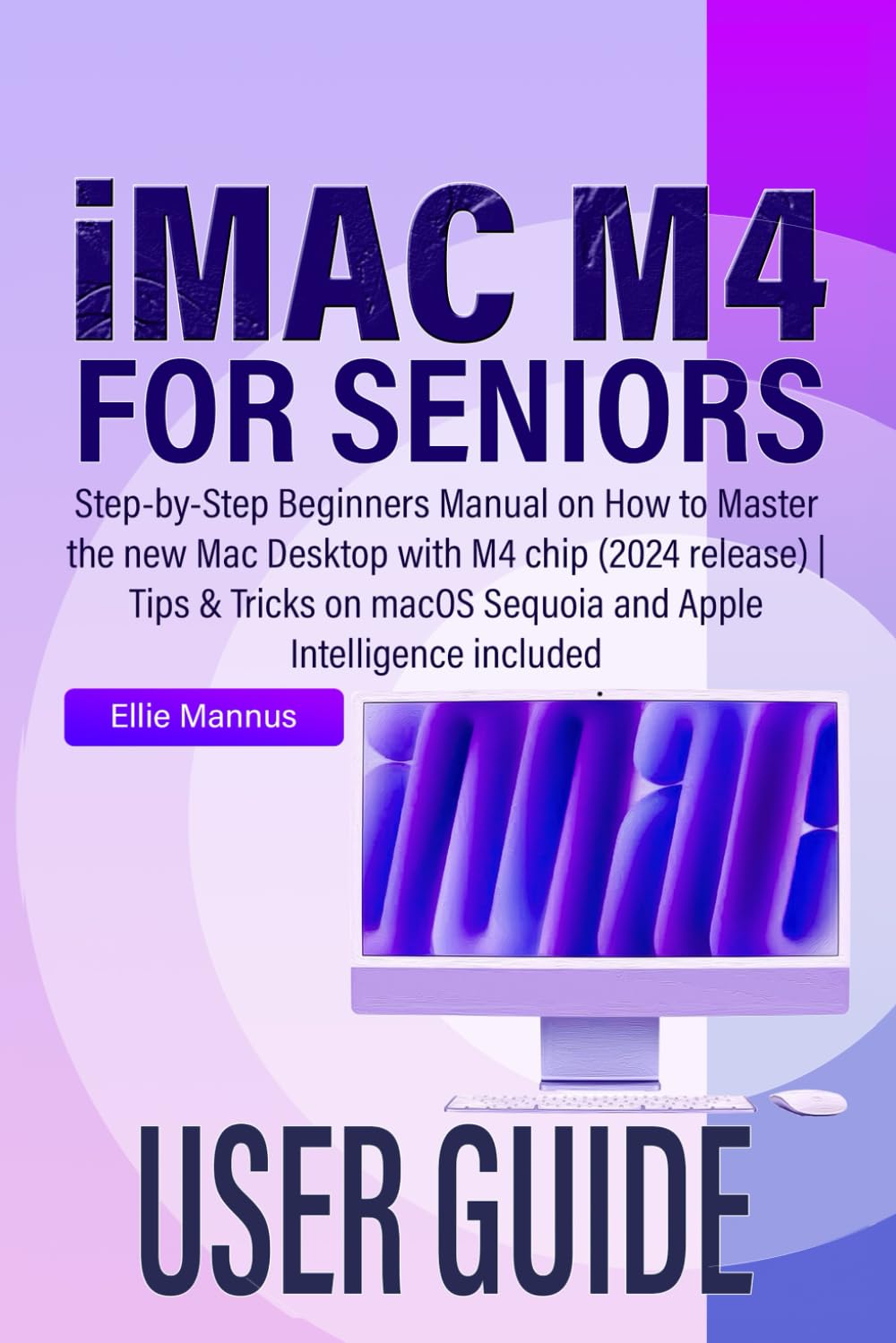
Image: Front cover of the "iMAC M4 USER GUIDE for seniors" book, featuring a purple and white abstract design.
Setup lan Konfigurasi Awal
This section details the steps required to set up your new iMac M4 and perform initial configurations. Ensure all components are unpacked and connected correctly before powering on the device.
1. Unboxing and Connections
- Carefully remove the iMac from its packaging.
- Connect the power cable to the iMac and then to a power outlet.
- Connect the Magic Keyboard and Magic Mouse (or other peripherals) via Bluetooth or USB.
2. First Power On and macOS Setup Assistant
- Press the power button located on the back of the iMac.
- Follow the on-screen instructions from the macOS Setup Assistant to select your language, region, and connect to a Wi-Fi network.
- Create or sign in with your Apple ID. This is crucial for accessing Apple services like iCloud and the App Store.
- Transfer data from an older computer if prompted, or choose to set up as a new Mac.
3. Kustomisasi
- Adjust display settings, wallpaper, and widgets via System Settings.
- Configure accessibility features for vision, hearing, mobility, and speech as needed.
Operating Your iMac M4 with macOS Sequoia
This section covers the fundamental operations of your iMac M4, focusing on navigation and essential applications within macOS Sequoia.
1. Navigating the macOS Interface
- Golek: Ngatur Panjenengan files and folders. Access it from the Dock.
- Dok: A row of icons at the bottom (or side) of your screen for quick access to applications and documents.
- Pusat Notifikasi: Access notifications and widgets from the top-right corner of the screen.
- Sorotan: Pencet dhawuh + Spasi to quickly search for files, applications, and information.
2. iCloud and Photos
- iCloud: Store and synchronize your documents, photos, contacts, and more across all your Apple devices. Access iCloud settings in System Settings.
- Photos App: Organize, edit, and share your photos. Photos stored in iCloud are accessible here.
3. Productivity and Creativity
- Multiple Spaces: Organize your workspace by creating multiple desktops. Swipe with three or four fingers on your trackpad to switch between them.
- Intine: Create presentations. Learn to add transitions, images, charts, video, and audio.
Pangopènan lan laku paling apik
Regular maintenance ensures optimal performance and longevity of your iMac M4.
- Nganyari piranti lunak: Regularly check for and install macOS updates via System Settings > General > Software Update.
- Data serep: Use Time Machine to regularly back up your data to an external drive.
- Clean Storage: Periodik review lan mbusak sing ora perlu files kanggo mbebasake papan panyimpenan.
- Reresik Fisik: Gunakake kain sing alus lan tanpa serat kanggo ngresiki layar lan njaba. Ngindhari bahan kimia sing atos.
- Manajemen Wektu Layar: Utilize Screen Time features in System Settings to monitor and manage usage.
Ngatasi Masalah Umum
This section provides solutions for common problems you might encounter with your iMac M4.
1. iMac Not Responding
- If an application is unresponsive, press dhawuh + Pilihan + Esc to open the Force Quit Applications window and close the problematic app.
- If the entire system is unresponsive, press and hold the power button until the iMac shuts down, then restart.
2. Masalah Konektivitas Jaringan
- Check your Wi-Fi connection in the menu bar. Ensure Wi-Fi is turned on and you are connected to the correct network.
- Wiwiti maneh router lan modem Wi-Fi.
- Go to System Settings > Network to diagnose and troubleshoot connection problems.
3. Peripheral Devices Not Working
- Ensure Bluetooth is enabled in System Settings > Bluetooth for wireless devices.
- Check USB connections for wired devices. Try a different USB port.
- Restart the iMac to reset device connections.
Spesifikasi
Key technical specifications for the Apple iMac M4 (2024 release).
| Fitur | Rincian |
|---|---|
| Prosesor | Chip Apple M4 Kab |
| Sistem Operasi | macOS Sequoia |
| Tampilan | Retina 4.5K display (specific size varies by model) |
| Memori | Configurable (e.g., 8GB, 16GB, 24GB unified memory) |
| Panyimpenan | Configurable SSD (e.g., 256GB, 512GB, 1TB, 2TB) |
| Konektivitas | Wi-Fi 6E, Bluetooth 5.3, Thunderbolt / USB 4 ports, USB 3 ports, Gigabit Ethernet (optional) |
| kamera | 1080p kamera FaceTime HD |
| Audio | High-fidelity six-speaker system with force-cancelling woofers |
Warranty lan Dhukungan
Your Apple iMac M4 comes with a standard limited warranty. For detailed information regarding warranty coverage, technical support, and service options, please refer to the official Apple websitus utawa hubungi Dhukungan Apple langsung.
- Dhukungan Apple Websitus: support.apple.com
- AppleCare: Coba tukuasing AppleCare+ for extended warranty and accidental damage protection.
- Service lan ndandani: For hardware issues, contact Apple Authorized Service Providers.