Produk Overview
The Skullcandy Crusher Evo headphones offer a multi-sensory bass experience, long battery life, and personalized sound. This manual provides instructions for setup, operation, maintenance, and troubleshooting.

Image: Skullcandy Crusher Evo headphones in Chill Grey, showcasing the over-ear design and included charging cables.
Setup
Apa ing Box
- Crusher® Evo Wireless Headphones
- Kabel Pengisian USB-C
- Back-up AUX Cable
- Kasus Proteksi
- Quick Start & User Guides
- Bonus Extended USB-C Charging Cable
Nguripake / Pateni
To turn on your headphones, press the power button for 3 seconds. To turn off your headphones, press the power button for 3 seconds.
Video: Demonstrates how to power the Skullcandy Crusher Evo headphones on and off.
pasangan
To pair to your device for the first time, power on the headphones using the power button. They will enter pairing mode automatically the first time you power them up. Now, turn on your device's Bluetooth and look for "Crusher Evo" in your list of available Bluetooth devices. Select "Crusher Evo" and accept any "Pair" or "OK" prompts that appear on your screen. When pairing is complete, a voice prompt will say "connected."
To pair to a new device when the headphones are powered off, press the power button for 5 seconds to enter pairing mode. The voice prompt will say "pairing" and you can select "Crusher Evo" from the Bluetooth device list.
Video: Instructions for initial Bluetooth pairing and pairing to a new device with Skullcandy Crusher Evo.
Operasi
Kontrol
Crusher Evo has a full suite of controls to keep you connected without having to touch your phone.
- To play or pause your music, press the main button once.
- To turn up the volume, press the top button.
- To turn down the volume, press the bottom button.
- To skip a song forward, press the top button for 3 seconds.
- To skip a song backward, press the bottom button for 3 seconds.
Video: Explains the basic playback and volume controls on the Skullcandy Crusher Evo headphones.
Crusher Bass Controls
Crusher Evo features the latest evolution of the patented Skullcandy Crusher Sensory Bass experience. Inside your Crusher Evo headphones are powerful audio drivers, along with 'haptic' technology. Haptics are the vibrations you sometimes feel when interacting with buttons on a device like your phone. In the case of Crusher Evo, the haptic vibration in the earcups is triggered by bass frequencies from your music or movies. The sensation transmitted to your head and ears from those haptic vibrations is what we mean by “music you can feel.” That's the heart of Crusher. And you can only get it with Skullcandy.
To adjust the level of Crusher Bass, use the slider on the back of the left earcup. Slide it down for a more mellow bass experience. Slide it up if you really want to feel the maximum power of the bass and the most immersive experience.
Video: Details the functionality and adjustment of the Crusher Bass feature on the headphones.
Njupuk Telpon
- To take a call, press the main button once.
- You can also end the call by pressing the main button once.
- To reject a call, press the main button for 3 seconds.
- To activate your device's assistant, press the main button 2 times.
Video: Explains how to manage phone calls and activate voice assistant using the headphone controls.
Pangopènan
Ngisi daya
To charge your headphones, plug in the USB-C charge cable and connect to a computer, wall charger, power bank or 12-volt adapter in a car. The headphone LED will be solid red while charging. The LED will turn green when fully charged. On a full charge, you will get up to 40 hours of play time. Crusher Evo is also designed with Rapid Charge. Which means that just 10 minutes of charging will give you 4 hours of play time.
Priksa Status Baterai
When your battery has less than 30 minutes of play time left, a voice prompt will notify you “battery low” and the LED will flash red every 10 seconds. If you're using your earbuds with an Apple device, you can check their battery life on the shortcuts screen when they're connected to your device.
Video: Provides instructions on how to charge the headphones and check battery status.
Ngatasi masalah
Find Your Lost Headphones with Tile App
To make sure you never lose your headphones, we've built Tile™ finding technology into Crusher Evo. The Tile finding feature is easy to set up through the Tile App and will allow you to “ring” or locate your headphones if you ever misplaced them, or if they're taken. First, you'll need to download the Tile App for this feature to work. Once you've downloaded the Tile App, follow the on-screen instructions to connect your headphones.
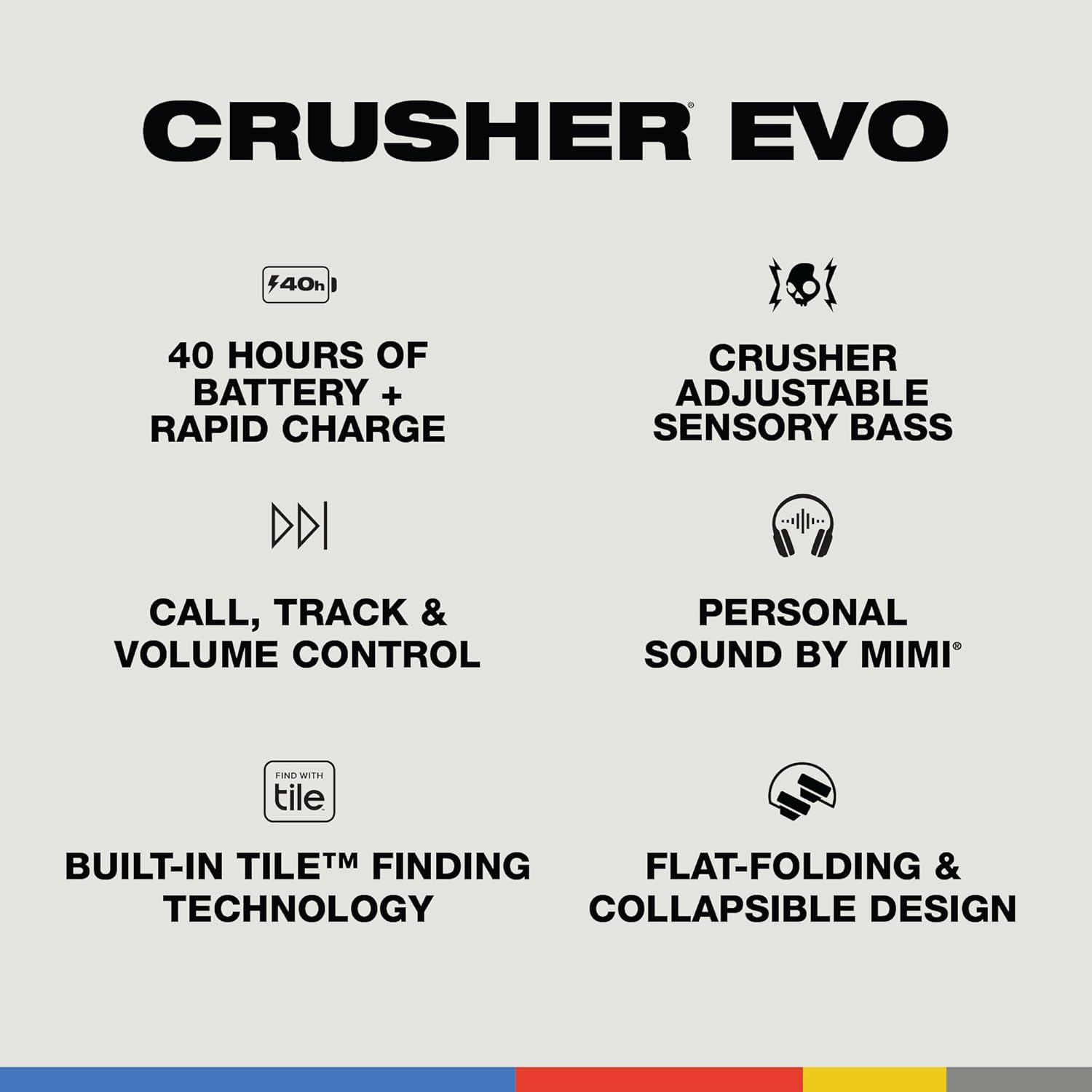
Image: Skullcandy Crusher Evo highlighting key features including built-in Tile™ finding technology.
Video: Explains how to use the Tile app to locate your Skullcandy Crusher Evo headphones.
Reset Crusher Evo
Here's how you reset Crusher Evo if you have pairing difficulties. First, remove your headphones from your device's Bluetooth paired list. Now, press and hold the top and bottom buttons simultaneously for 2 seconds. The LED light will flash purple. A voice prompt will then say "Disconnected" and then the headphones will go into pairing mode. The LED will then flash blue and red and voice prompt will say "pairing". At this time, turn on your device's Bluetooth and look for "Crusher Evo" in your list of available Bluetooth devices. Select "Crusher Evo" and accept any "Pair" or "OK" prompts that appear on your screen. When pairing is complete, a voice prompt will say "connected."
Video: Step-by-step guide on how to reset your Skullcandy Crusher Evo headphones for troubleshooting pairing issues.
Spesifikasi
| Kontrol swara | ora ana |
| Respon Frekuensi | 20 Hz - 20,000 Hz |
| Sensitivitas | 100 dB |
| Jack Headphone Kab | 3.5 mm Jack |
| Teknologi Konektivitas | Nirkabel (Bluetooth, Wi-Fi) |
| Urip baterei | Nganti 40 Jam |
| Tipe Kontrol | Volume Control, Button, App |
| Bentuk Earpiece | Over-Ear |
| Bahan | Kulit Imitasi, Plastik |
| Bobot Barang | 1.56 pon (0.71 Kilogram) |
| Dimensi produk | 8.07 x 4.33 x 10.83 inci |
| UPC | 810045689654 |
Warranty lan Dhukungan
Informasi Garansi
The Skullcandy Crusher Evo headphones include a 1-Year USA Limited Warranty.
Skullcandy App Support
Crusher Evo is also compatible with the Skullcandy App. You can use the App to activate the Personal Sound feature, alternate between pre-set EQ Modes, assist in pairing, and access additional user guides or troubleshooting help.

Image: Screenshot of the Skullcandy App interface, showing options for personal sound and EQ modes.
Video: Demonstrates how to download and use the Skullcandy App for enhanced features and support.