
1. Pambuka
The ACT AC7049 Dual Monitor Docking Station transforms your laptop into a complete workstation. This versatile 11-in-1 docking station allows you to connect up to two Full HD displays (max. 2048 x 1152 resolution) to your laptop via HDMI, using a single USB-C/A cable. It expands your laptop's connectivity with a Gigabit LAN port, microphone and headphone jacks, and six additional USB ports. Featuring DisplayLink® technology, it ensures advanced screen display on both MacOS and Windows computers.
2. Fitur Utama
- Dhukungan Monitor Dual: Connect up to two external displays with HDMI ports, supporting resolutions up to 2048x1152@60Hz.
- Kompatibilitas Universal: Works with laptops featuring a USB-C or USB-A 3.2 Gen1 (USB 3.0) port, compatible with MacOS and Windows thanks to DisplayLink technology.
- Konektivitas ekstensif: Includes 2x HDMI, 1x Gigabit Ethernet, 3x USB-A 3.2 Gen 1 (one with fast charging), 4x USB-A 2.0, and 3.5mm audio jacks for microphone and headphones.
- Penempatan Fleksibel: Designed for both vertical and horizontal placement to optimize desk space and port accessibility.
- Port Pengisian USB: Dedicated USB port for charging smartphones and tablets.
3. Isi Paket
Mangga dipriksa paket kanggo item ing ngisor iki:
- ACT AC7049 Docking Station
- USB-C/A 3.2 Gen1 Connection Cable (USB-A to USB-C)
- Adaptor Daya
- Ngadeg Vertikal
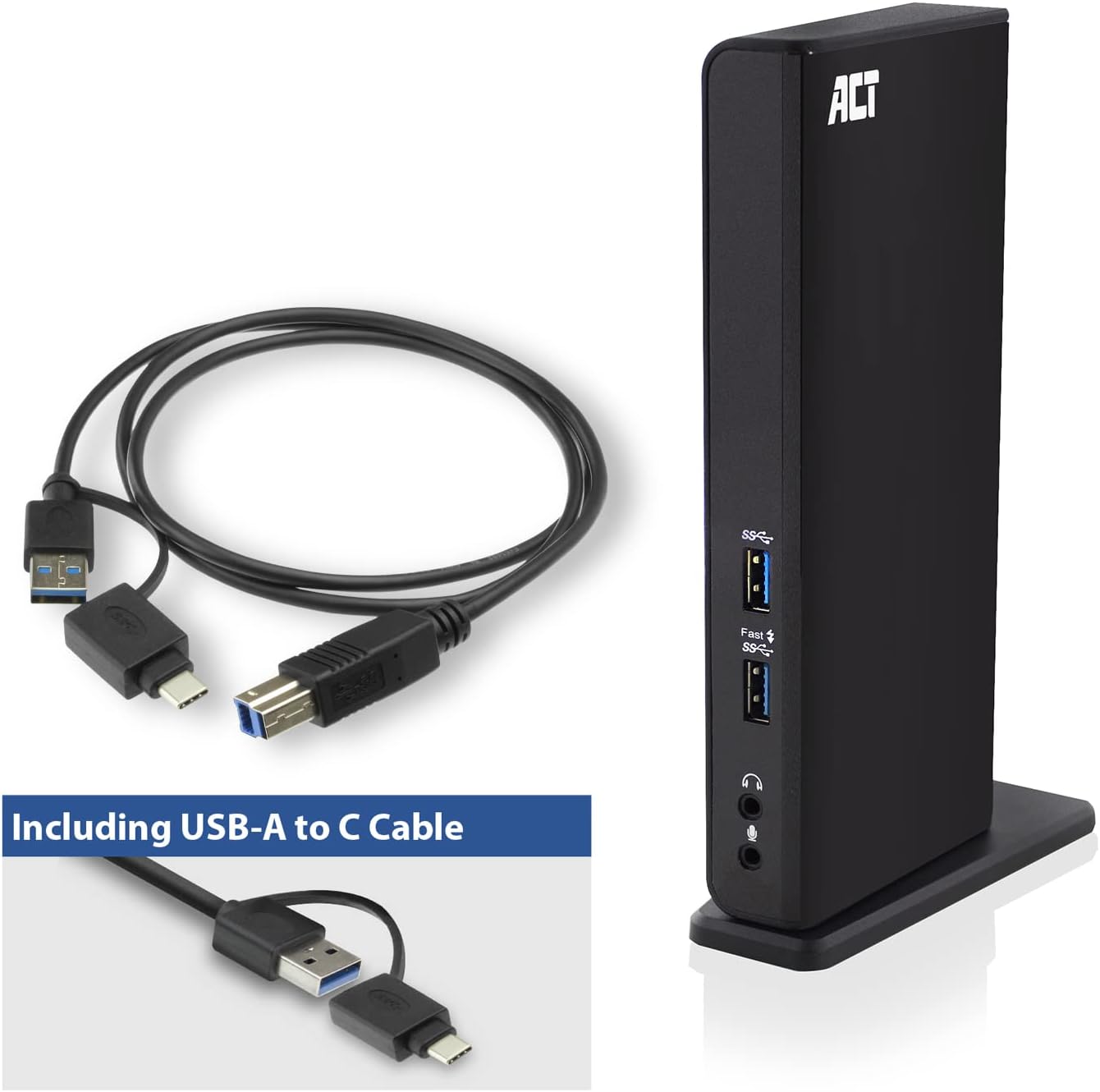
Image: The ACT AC7049 Docking Station shown with its included USB-A to USB-C connection cable and power adapter, highlighting the components provided in the package.
4. Pandhuan Setup
4.1. Nyambungake Adaptor Daya
- Connect the power adapter to the DC 5V input port on the back of the AC7049 docking station.
- Plug the power adapter into a wall outlet. The docking station will power on.
4.2. Nyambung menyang Laptop
- Use the provided USB-C/A 3.2 Gen1 connection cable. Connect the USB-B end to the corresponding port on the docking station.
- Connect the other end (USB-A or USB-C, depending on your laptop's port) to an available USB 3.2 Gen1 (USB 3.0) or USB-C port on your laptop.
4.3. Driver Installation (DisplayLink)
The AC7049 utilizes DisplayLink technology for extended monitor functionality. Drivers are typically installed automatically on most operating systems. If not, please follow these steps:
- Bukak DisplayLink resmi websitus (www.displaylink.com/downloads) to download the latest drivers for your operating system (Windows or MacOS).
- Install the downloaded driver package and follow the on-screen instructions.
- Wiwiti maneh komputer yen dijaluk.

Image: The official DisplayLink 'Plug and Display' logo, indicating the technology used for multi-monitor support.
5. Instruksi Operasi
5.1. Nyambungake Tampilan njaba
- Connect your HDMI monitors to the two HDMI ports on the back of the docking station.
- Once connected, your operating system should detect the new displays. You can configure display settings (extend, mirror, primary display) through your computer's display settings.

Image: A visual representation of the docking station enabling both 'Mirror your content' and 'Extend your content' display modes across a laptop and two external monitors.
5.2. Connecting USB Peripherals
- Port USB ngarep: Two USB-A 3.2 Gen1 ports (one with fast charging capability) are located on the front for easy access to frequently used devices like USB drives, smartphones, or tablets.
- Rear USB Ports: Four USB-A 2.0 ports are located on the back for connecting peripherals such as keyboards, mice, printers, or other less frequently connected devices.
5.3. Sambungan Jaringan
Connect an Ethernet cable from your router or network switch to the Gigabit Ethernet port on the docking station. Your laptop will automatically gain wired network access.
5.4. Sambungan Audio
Connect your headphones and/or microphone to the dedicated 3.5mm audio jacks on the front of the docking station.

Image: An isometric diagram showcasing the comprehensive connectivity of the ACT AC7049, demonstrating how a laptop, two monitors, a keyboard, mouse, network cable, headphones, and a smartphone can all be connected simultaneously.
6. Pilihan Panggonan
The ACT AC7049 docking station offers flexible placement options to suit your workspace:
- Penempatan vertikal: Use the included stand to position the docking station vertically. This saves desk space and provides easy access to all ports.
- Penempatan Horizontal: The docking station can also be placed horizontally if preferred.

Image: The ACT AC7049 Docking Station positioned vertically on its stand, highlighting its compact design and accessible ports.
7. Pangopènan
To ensure optimal performance and longevity of your ACT AC7049 Docking Station, follow these maintenance guidelines:
- Reresik: Use a soft, dry cloth to clean the exterior of the docking station. Avoid using liquid cleaners or aerosols, as they may damage the device.
- Ventilasi: Priksa manawa stasiun docking diselehake ing wilayah sing duwe ventilasi sing apik kanggo nyegah overheating. Aja ngalangi bukaan ventilasi.
- Panyimpenan: Yen ora digunakake kanggo wektu sing suwe, simpen stasiun docking ing papan sing adhem lan garing, adoh saka sinar srengenge langsung lan suhu sing ekstrem.
- Manajemen Kabel: Jaga kabel supaya teratur lan bebas saka bengkong utawa mlengkung sing berlebihan kanggo nyegah kerusakan kabel lan port.
8. Ngatasi masalah
If you encounter issues with your ACT AC7049 Docking Station, please refer to the following common troubleshooting steps:
- Ora Output Tampilan:
- Ensure the docking station is powered on and correctly connected to your laptop.
- Verify that the HDMI cables are securely connected to both the docking station and the monitors.
- Priksa setelan tampilan laptop sampeyan kanggo mesthekake yen monitor eksternal wis dideteksi lan dikonfigurasi kanthi bener (kayata, monitor sing diperpanjang utawa dicerminkan).
- Reinstall or update the DisplayLink drivers from www.displaylink.com/downloads.
- Coba sambungake siji monitor saben wektu kanggo misahake masalah kasebut.
- Piranti USB Ora Bisa Digunakake:
- Ensure the docking station is properly connected to your laptop and powered.
- Try connecting the USB device directly to your laptop to confirm it is functional.
- Connect the USB device to a different USB port on the docking station.
- Wiwiti maneh laptop.
- Ora Ana Sambungan Jaringan:
- Priksa manawa kabel Ethernet wis disambungake kanthi aman menyang stasiun docking lan router/switch sampeyan.
- Priksa setelan jaringan laptop sampeyan kanggo mesthekake yen sambungan kabel wis diaktifake.
- Coba kabel Ethernet nganggo piranti liya yen bisa.
- Audio ora bisa digunakake:
- Ensure headphones/microphone are fully plugged into the correct 3.5mm jacks.
- Check your laptop's sound settings to ensure the docking station's audio output/input is selected as the default device.
9. Spesifikasi
| Fitur | Spesifikasi |
|---|---|
| Nomer Model | AC7049 |
| Merk | ACT |
| warna | ireng |
| Teknologi Konektivitas | USB-A, USB-C |
| Video Output | 2 x HDMI (Max. 2048 x 1152 @ 60Hz) |
| Port USB | 3 x USB-A 3.2 Gen 1 (5Gbps, 1x Fast Charging), 4 x USB-A 2.0 (480Mbps) |
| Port Jaringan | 1 x Gigabit Ethernet (RJ45) |
| Port Audio | 1 x 3.5mm Headphone Jack, 1 x 3.5mm Microphone Jack |
| Piranti sing kompatibel | Laptop, Computer (with USB 3.2 Gen1 / USB 3.0 or USB-C port) |
| Dhukungan Sistem Operasi | Windows, MacOS (via DisplayLink) |
| Ukuran (L x W x H) | 10.9 x 6 x 18.1 cm (kira-kira) |
| Bobot Barang | 317 XNUMXgm |
10. Warranty lan Dhukungan
ACT products are designed for reliability and adhere to international standards and EU legislation. The ACT AC7049 Docking Station comes with a manufacturer's warranty, typically ranging from 2 to 5 years. For specific warranty details and support, please refer to the official ACT websitus utawa hubungi pengecer Panjenengan.
For technical support or further inquiries, please visit the official ACT connectivity websitus: www.act-connectivity.com