
Finlux FLU5535ANDROID
Finlux FLU5535ANDROID 55-inch 4K Ultra HD Android Smart TV
Manual pangguna
1. Pambuka
Matur nuwun kanggo tukuasing the Finlux FLU5535ANDROID 55-inch 4K Ultra HD Android Smart TV. This manual provides essential information for setting up, operating, and maintaining your new television. Please read this manual thoroughly before using the product and keep it for future reference.
Informasi Safety Penting
Always follow basic safety precautions when using this television to reduce the risk of fire, electric shock, and injury to persons. Do not expose the TV to rain or moisture. Do not open the cabinet. Refer all servicing to qualified personnel.
- Priksa manawa ventilasi sing tepat ing saubengé TV.
- Aja nutupi bolongan ventilasi nganggo barang-barang kayata koran, taplak meja, utawa gorden.
- Aja nyelehake TV ing gerobak, stand, tripod, braket, utawa meja sing ora stabil.
- Copot TV nalika badai bledhek utawa yen ora digunakake kanggo dangu.
- Keep small components and batteries out of reach of children.
2. Apa ing Box
Upon unpacking your Finlux FLU5535ANDROID TV, please ensure all the following items are present:
- Finlux FLU5535ANDROID 55-inch 4K Ultra HD Android Smart TV
- Remote Control karo Baterei
- Kabel Daya
- Stand (if applicable, for tabletop placement)
- Manual pangguna (dokumen iki)
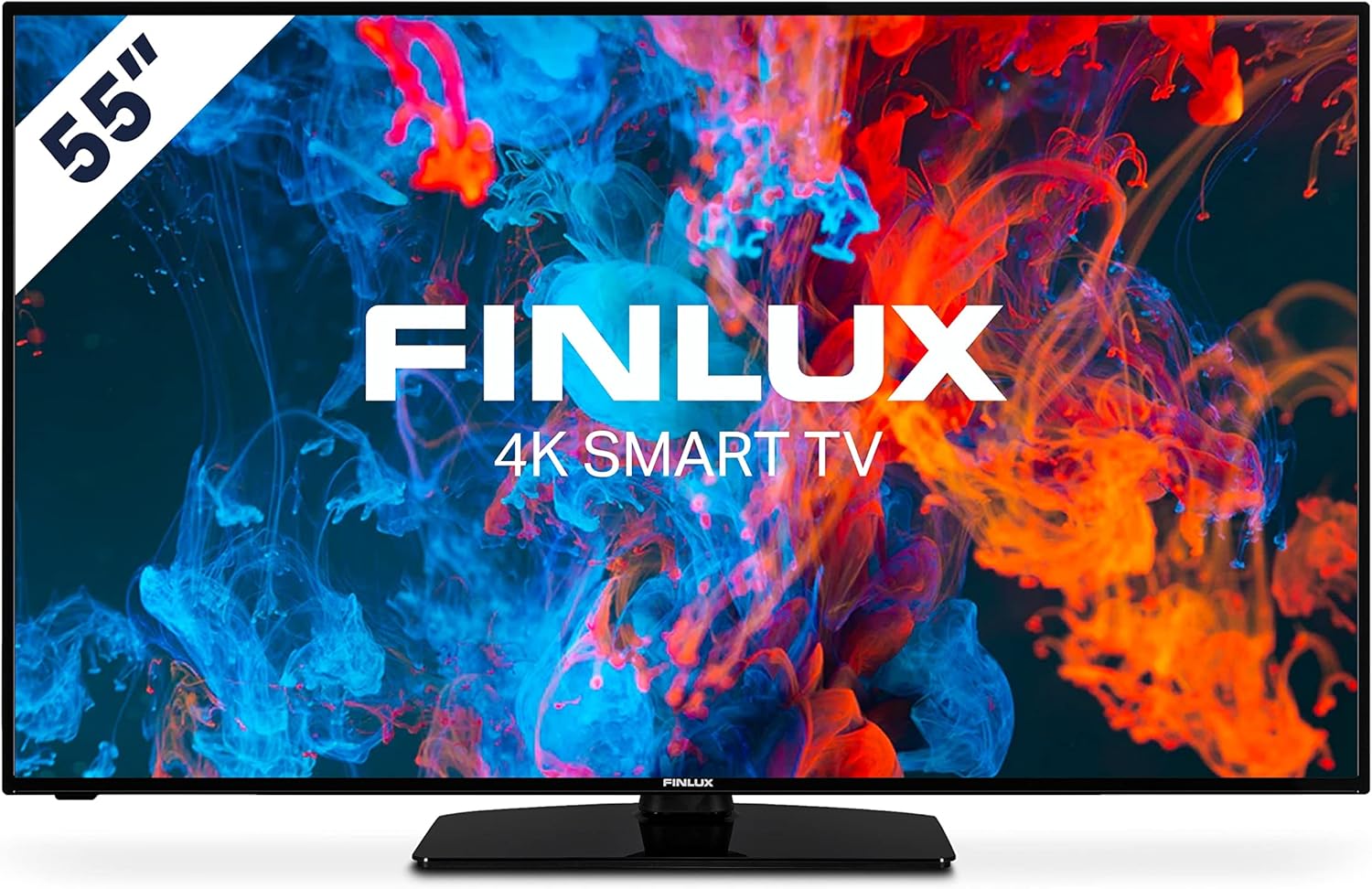
Gambar: Ngarep view of the Finlux FLU5535ANDROID 55-inch 4K Ultra HD Android Smart TV, showcasing its slim bezel and central stand.
3. Setup
3.1 Panggonan Fisik
The Finlux FLU5535ANDROID TV features a practical size and a slim screen, making it easy to place in various rooms. Its flat back and thin screen design allow for easy wall mounting or placement against a wall.
- Papan panggonan ing meja: Attach the provided stand securely to the TV following the instructions in the separate quick start guide. Place the TV on a stable, level surface.
- Pemasangan tembok: If you plan to wall mount the TV, ensure you use a VESA-compatible wall mount (not included) and follow the wall mount manufacturer's instructions.
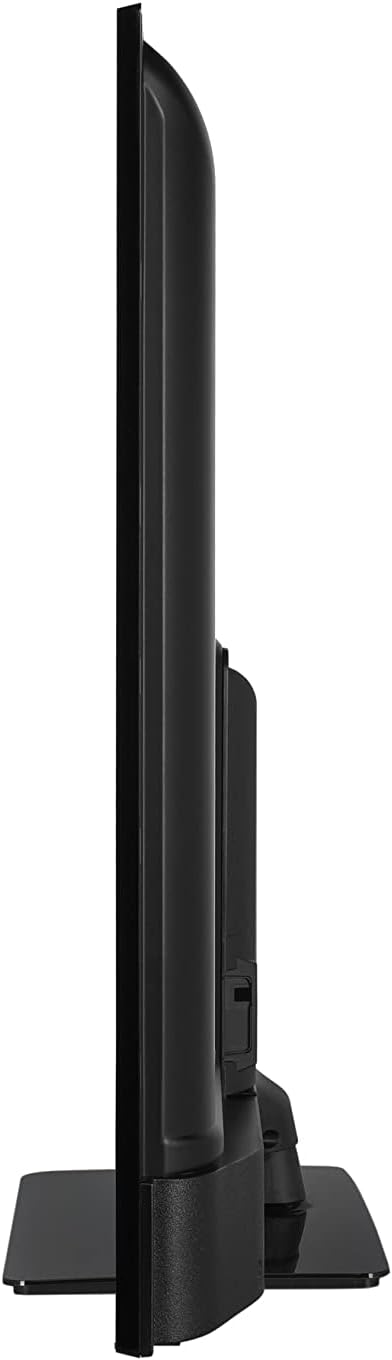
Gambar: Side profile view of the Finlux FLU5535ANDROID TV, highlighting its slim design.
3.2 Sambungake Kabel
Connect the power cable to the TV's power input and then to a wall outlet. Connect your external devices such as set-top boxes, gaming consoles, or Blu-ray players to the appropriate ports on the TV.

Gambar: mburi view of the Finlux FLU5535ANDROID TV, displaying the arrangement of its input ports including HDMI and USB.
- HDMI: Connect high-definition devices using HDMI cables. This TV features 4 HDMI ports.
- USB: Connect USB storage devices for media playback or PVR functionality. This TV has 2 USB ports.
- Antena / Kabel: Connect your antenna or cable TV input for broadcast channels.
- Ethernet: Kanggo sambungan internet kabel sing stabil.
3.3 Daya Awal lan Wisaya Persiyapan
After connecting all necessary cables, plug the TV into a power outlet and press the power button on the remote control or the TV itself. The TV will guide you through the initial setup process, including language selection, network connection, and channel scanning.
4. Ngoperasikake TV Sampeyan
4.1 Remote Control liwatview
The provided remote control allows you to navigate the TV's features and menus. Insert the included batteries into the remote control before use.

Image: The Finlux TV remote control, featuring dedicated buttons for quick access to popular streaming services like Netflix and YouTube, along with standard navigation and number keys.
- Tombol daya: Ngaktifake utawa mateni TV.
- Tombol Nomer: Kanggo pilihan saluran langsung.
- Pad Navigasi (Ndhuwur/Ngisor/Kiri/Tengen/OK): To navigate menus and confirm selections.
- Volume munggah/mudhun: Nyetel tingkat volume.
- Saluran munggah/mudhun: Ngganti saluran TV.
- Tombol Netflix/YouTube: Akses langsung menyang aplikasi streaming kasebut.
- Tombol Menu: Mbukak menu setelan utama.
- Tombol Metu: Metu saka menu utawa aplikasi saiki.
4.2 Android Smart TV Features
This TV runs on the Android operating system, providing access to a wide range of applications and smart features. Popular applications like Netflix, YouTube, and Prime Video are pre-configured for your convenience.
- Layanan streaming: Enjoy movies and series in high quality from Netflix, YouTube, Prime Video, and Spotify.
- Google Play Store: Download additional apps, games, and content from the Google Play Store.
- Chromecast Built-in: Easily cast content from your smartphone or other compatible devices directly to your TV.
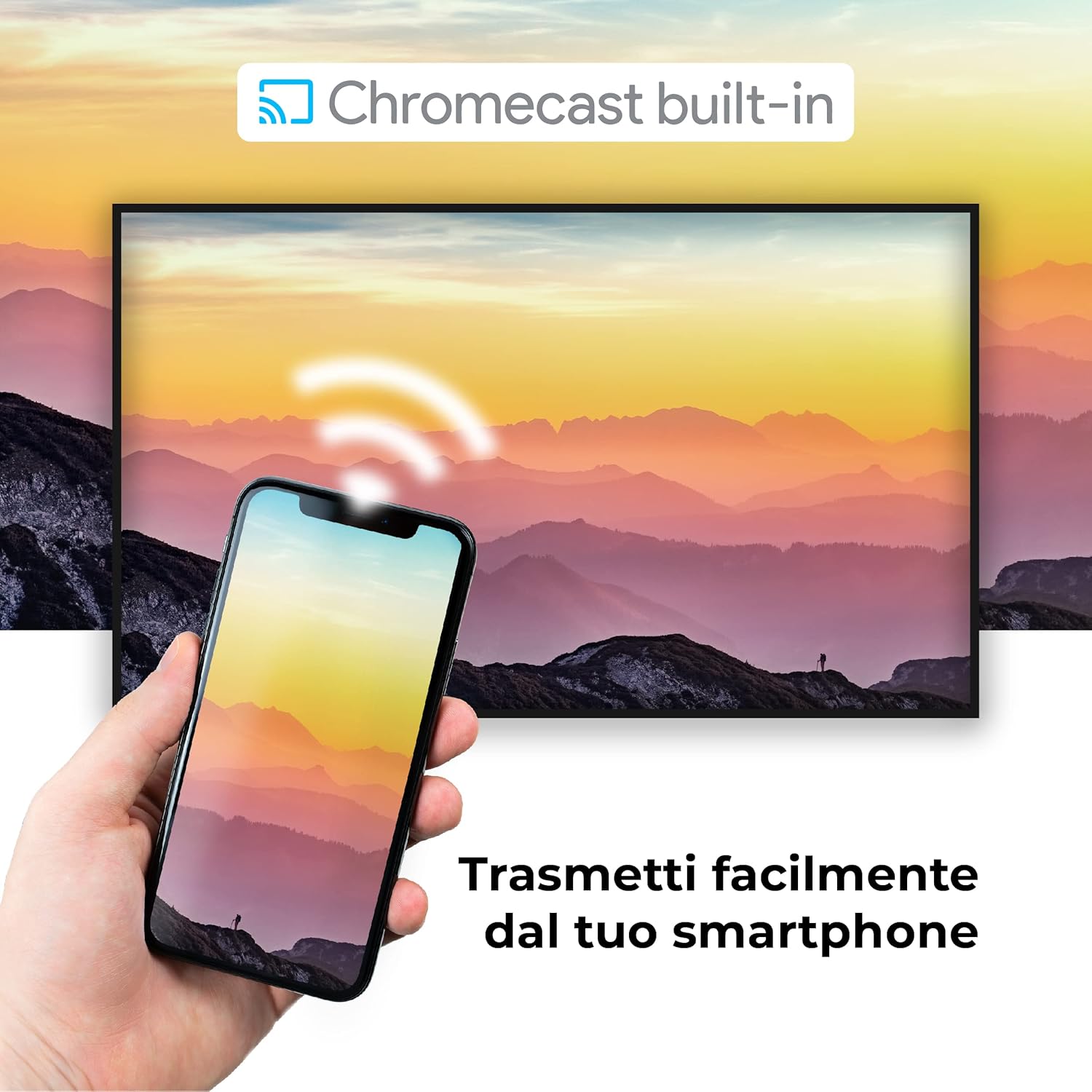
Image: A visual representation of the Chromecast built-in feature, demonstrating how content can be easily streamed from a smartphone to the Finlux TV.
4.3 USB Media Player and PVR
The TV supports USB multimedia playback, allowing you to view photos, play music, or watch videos directly from a USB storage device. It also features PVR (Personal Video Recorder) readiness, enabling you to record TV programs to a connected USB drive.
5. Sambungan
Your Finlux TV offers a variety of connection options for external devices:
- Port HDMI (x4): Kanggo nyambungake piranti definisi dhuwur kayata pemain Blu-ray, konsol game, lan kothak set-top.
- Port USB (x2): For connecting USB storage devices (e.g., flash drives, external hard drives) for media playback or PVR functionality.
- Bluetooth: For wireless connection to compatible audio devices like headphones or soundbars.
- Wi-Fi: Built-in Wi-Fi for wireless internet access and Smart TV features.
- Ethernet (LAN): Kanggo sambungan internet kabel sing stabil.
- Input antena: For connecting an aerial for digital terrestrial television (DVB-T, DVB-T2).
- Input Satelit: For connecting a satellite dish (DVB-S, DVB-S2).
- Output Audio Digital Optik: For connecting to a soundbar or home theater system for high-quality audio.
6. Pangopènan
6.1 Reresik TV
To ensure the longevity and optimal performance of your TV, regular cleaning is recommended:
- Layar: Lap layar kanthi alon-alon nganggo kain sing alus lan tanpa serat. Kanggo tandha wangkal, dampBilas kain sethithik nganggo banyu utawa pembersih layar khusus. Aja nyemprotake pembersih langsung menyang layar.
- Kabinet: Gunakake kain sing alus lan garing kanggo ngusap kabinet TV. Aja nggunakake pembersih abrasif utawa pelarut.
- Sadurunge ngresiki: Tansah copot TV saka stopkontak sadurunge ngresiki.
6.2 Perawatan Umum
- Aja nyelehake TV ing sinar srengenge langsung utawa cedhak karo sumber panas.
- Do not expose the TV to extreme temperatures or humidity.
- Protect the TV from dust by regularly dusting its surface.
- Aja nyelehake barang abot ing ndhuwur TV.
7. Ngatasi masalah
If you encounter issues with your TV, refer to the following common problems and solutions before contacting support:
| Masalah | Kemungkinan Penyebab / Solusi |
|---|---|
| Ora Daya | Ensure the power cable is securely plugged into the TV and the wall outlet. Check if the power outlet is working. Try pressing the power button on the TV itself. |
| Ora Gambar / Ora Swara | Check the input source (HDMI, AV, TV) is correctly selected. Ensure external devices are powered on and connected properly. For sound, check volume levels and mute settings. |
| Kualitas Gambar Miskin | Check antenna/cable connection. Adjust picture settings (brightness, contrast, sharpness) in the TV menu. Ensure the source content is high quality. |
| Remote Control Ora Bisa | Priksa lan ganti batere. Priksa manawa ora ana alangan antarane remot lan sensor IR TV. |
| Ora bisa Nyambung menyang Wi-Fi | Ensure Wi-Fi is enabled on the TV. Check your router is working and within range. Re-enter the Wi-Fi password. Try restarting both the TV and the router. |
| Aplikasi Smart TV Ora Dimuat | Check your internet connection. Try restarting the TV. Ensure the app is updated to the latest version. Clear app cache if available in settings. |
8. Spesifikasi
Below are the key technical specifications for the Finlux FLU5535ANDROID TV:
| Fitur | Rincian |
|---|---|
| Merk | Finlux |
| Nomer Model | FLU5535ANDROID |
| Ukuran Layar | 55 inci (140 cm) |
| Teknologi Tampilan | LED |
| Resolusi | 4K Ultra HD (3840 x 2160) |
| Refresh Rate | 100 Hz (with integrated technology, base 50 Hz) |
| Sistem Operasi | Android |
| Konektivitas | Bluetooth, HDMI, USB, Wi-Fi, Ethernet |
| Port HDMI | 4 |
| Port USB | 2 |
| Fitur Khusus | Flat Design, Android Smart TV, Chromecast Built-in, PVR Ready |
| Layanan Internet sing Didhukung | Netflix, YouTube, Prime Video, Spotify |
| Klebu Komponen | Power cable, Standard, TV |

Image: EU Energy Label for the Finlux FLU5535ANDROID TV, indicating its energy efficiency class G and power consumption details. For more details, visit the official EPREL database: Informasi Produk EPREL
9. Warranty lan Dhukungan
Finlux products are designed for reliability and performance. This product comes with a standard manufacturer's warranty. Please refer to the warranty card included with your product for specific terms and conditions.
For technical support, troubleshooting assistance beyond this manual, or warranty claims, please contact Finlux customer service. Contact information can typically be found on the manufacturer's official websitus utawa ing kemasan produk.
Note: Information regarding spare parts availability is not provided. Software updates are not guaranteed beyond a certain period.