
Pambuka
The Xfinity HD 720p Wireless Indoor/Outdoor Home Security Camera allows you to monitor your home environment with live video accessible from anywhere. Designed for both indoor and outdoor use, this camera provides essential security features to keep you informed.
Apa ing Box
- Xfinity HD 720p Wireless Security Camera (Model: SCHC2AEW)
- Adaptor Daya
- Kabel USB
- Piranti Pemasangan (sekrup lan jangkar)

Image: Xfinity Home Security Camera and accessories neatly packaged in its box.
Panuntun Setup
- Sambungan daya: Connect the camera to the power adapter using the provided USB cable, then plug the adapter into a standard electrical outlet.
- Download App: Download the official Xfinity Home app from your smartphone's app store (iOS App Store or Android Google Play).
- Pasangan piranti: Open the Xfinity Home app and follow the on-screen instructions to add a new device. You will typically need to scan a QR code on the camera or manually enter its details to pair it with your home Wi-Fi network. Ensure your Wi-Fi network is 2.4 GHz for compatibility.

Image: The Xfinity Home Security Camera placed on a surface, ready for setup.
Instruksi Operasi
Urip View lan Kontrol dhasar
Once paired, access the live video feed through the Xfinity Home app. The app provides controls for:
- Live Streaming: View wektu nyata footage saka kamera sampeyan.
- Rekaman: Ngrekam klip video kanthi manual.
- Screenshot: Jupuk gambar saka feed langsung.
- Audio Loro-Way: Speak through the camera's speaker and hear audio from its microphone.
Wawasan Wengi
The camera features night vision capabilities for clear monitoring in low-light conditions. This feature automatically activates when ambient light is insufficient, providing a black-and-white image. Some models may offer color night vision depending on ambient light and settings.
Deteksi Gerak lan Tandha
Configure motion detection settings within the Xfinity Home app to receive alerts on your smartphone when activity is detected. You can customize sensitivity levels and notification preferences.
Pilihan Panyimpenan
The camera supports local storage via a MicroSD card (not included). Insert a compatible MicroSD card into the designated slot to store recorded video clips directly on the device. Cloud storage options may also be available through your Xfinity Home service subscription.
Instalasi lan Pemasangan
The Xfinity Home Security Camera can be placed on a flat surface or mounted to a wall. Use the included mounting hardware for secure wall installation. Ensure the camera is positioned to cover the desired monitoring area.
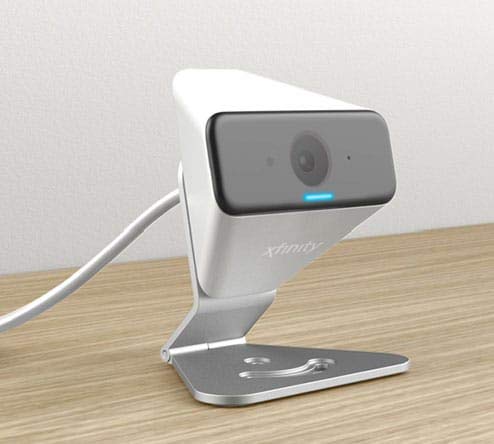
Image: The Xfinity Home Security Camera positioned on a desk, demonstrating its compact design.
Spesifikasi Produk
| Fitur | Rincian |
|---|---|
| Nomer Model | SCHC2AEW |
| Resolusi Jupuk Video | 720p |
| Teknologi Konektivitas | Nirkabel (Wi-Fi) |
| Protokol Konektivitas | Wi-Fi (2.4 GHz compatible) |
| Panggunaan njero ruangan / ruangan | Ing njero ruangan, njaba ruangan |
| Fitur Khusus | Sensor Gerak, Night Vision |
| Sumber Daya | DC (12 Volts, 1 Watt) |
| Ukuran (L x W x H) | 3 x 3 x 2 inci |
| Bobot Barang | 1.57 kab |
| Rating Proteksi Internasional | IP65 |
Ngatasi masalah
- Ora Daya: Priksa manawa adaptor daya disambungake kanthi aman menyang kamera lan stopkontak listrik sing bisa digunakake.
- Masalah konektivitas: Verify your Wi-Fi network is 2.4 GHz. Restart your router and the camera. Ensure the camera is within range of your Wi-Fi signal.
- App ora nanggapi: Close and reopen the Xfinity Home app. If the issue persists, try reinstalling the app.
- Kualitas video sing kurang apik: Priksa kekuwatan sinyal Wi-Fi sampeyan. Priksa manawa lensa kamera resik lan bebas saka alangan.
Garansi lan Dhukungan Pelanggan
For warranty information, please refer to the documentation included with your purchase or visit the official Xfinity support website. For technical assistance or customer service, please contact Xfinity customer support directly.