
DNP DS-RX1HS
DNP DS-RX1HS 6-inch Dye Sublimasi Printer Manual Panganggo
Model: DS-RX1HS
Produk Overview
The DNP DS-RX1HS 6-inch Dye Sublimation Printer is designed for high-speed, high-quality photo printing. It offers enhanced performance with a print speed of up to 290 4x6-inch prints per hour, making it suitable for various applications including photo booths and event photography. This printer combines a low initial investment with affordable media costs, while delivering professional-grade results.

Figure 1: The DNP DS-RX1HS printer, bundled with a protective carrying case and media rolls for immediate use.
The DS-RX1HS supports various print sizes, including 2x6-inch, 4x6-inch, and 6x8-inch, and is compatible with RX1HS MEDIA SETs. It features USB iSerial functionality for seamless connectivity with both Mac and PC computers, allowing for effortless printing to multiple units.
Apa Klebu
The DNP DS-RX1HS bundle typically includes the following components:
- DNP DS-RX1HS 6" Dye Sublimation Printer
- Printer CD with drivers for Windows OS7 and 8.1
- Driver Instruction Guide
- Pandhuan persiyapan cepet
- Kabel Daya
- Printhead Cushion
- 2 Rolls of DNP 4x6" Media (700 Prints Per Roll)
- Padded Printer Carrying Case
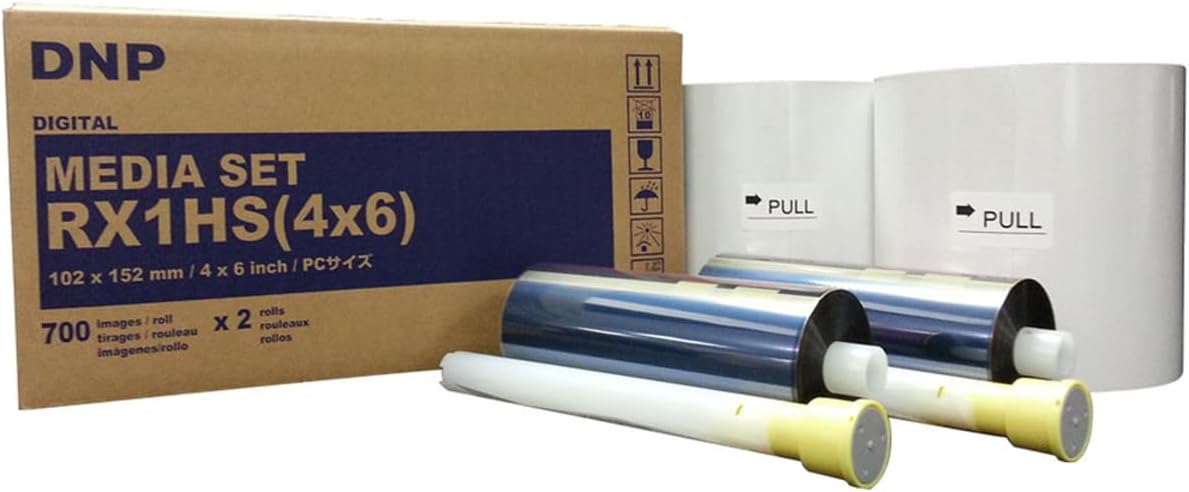
Figure 2: The DNP RX1HS 4x6 Media Set, which includes both paper and ribbon rolls necessary for printing.
Pandhuan Setup
1. Unpacking lan Panggonan
- Copot printer lan kabeh aksesoris saka kemasan kasebut kanthi teliti.
- Place the printer on a stable, flat surface with adequate ventilation. Ensure there is enough space around the printer for media loading and print output.
- Verify all included components are present as listed in the "What's Included" section.

Figure 3: A front-angled view of the DNP DS-RX1HS printer, showing its compact design suitable for various setups.
2. Media Loading
- Bukak tutup ngarep printer.
- Insert the paper roll onto the designated spindle, ensuring it is properly aligned.
- Load the ink ribbon cartridge into its slot, making sure it clicks into place.
- Nutup tutup ngarep kanthi aman.
- penting: Always unload the paper and ink ribbon after use, especially before transporting the printer, and insert the foam head-protector.

Figure 4: The front panel of the DNP DS-RX1HS printer, displaying the power, ribbon, paper, and error indicator lights.
3. Nyambung menyang Komputer
- Connect the printer to your computer (Mac or PC) using the provided USB cable.
- Install the printer drivers from the included CD or download the latest drivers from the official DNP websitus. Tindakake pandhuan ing layar kanggo instalasi.
- For Windows OS7 and 8.1, drivers are provided. Ensure your operating system is compatible.
Instruksi Operasi
1. Nguripake lan Nglakokake Inisialisasi
- Sambungake kabel daya menyang printer banjur menyang stopkontak.
- Press the power button. The printer will perform an initialization sequence.
- During initialization, the printer may feed a few blank pages. This is normal.
2. Nyetak Foto
- Open the image you wish to print in your preferred photo editing or printing software.
- Pilih DNP DS-RX1HS minangka printer sampeyan.
- Adjust print settings such as print size (2x6", 4x6", 6x8"), resolution (300x300dpi or 300x600dpi), and surface (matte or glossy) as desired.
- Initiate the print command. The printer will begin processing and outputting the photo.
- The DS-RX1HS is capable of printing 4x6" photos in approximately 12.4 seconds.
3. Multiple Printer Setup (USB iSerial)
The USB iSerial functionality allows for seamless connectivity and printing to multiple DS-RX1HS printers from a single Windows or Mac platform. Refer to the Driver Instruction Guide for detailed setup procedures for multi-printer environments.
Pangopènan
1. Cleaning the Printhead
Regular cleaning of the printhead is crucial for maintaining print quality and extending the life of your printer. Use the provided printhead cushion or a soft, lint-free cloth lightly dampkaro isopropil alkohol.
- Pateni lan copot printer.
- Open the front cover and carefully access the printhead.
- Gently wipe the printhead surface to remove any dust or debris.
- Allow the printhead to dry completely before closing the cover and powering on the printer.
2. Panyimpenan Media
Store media rolls in a cool, dry place away from direct sunlight and extreme temperatures to preserve their quality and prevent issues like sticking or jamming.
Ngatasi masalah
| Masalah | Kemungkinan Penyebab | Solusi |
|---|---|---|
| Printer ora urip | Kabel listrik pedhot, masalah stopkontak | Priksa sambungan daya, coba stopkontak liyane. |
| Paper jam / Error light on | Improper media loading, debris in paper path, ribbon stuck to paper | Turn off printer, open cover, carefully remove jammed media. Ensure media is loaded correctly. Always unload media after use. |
| Kualitas cetak sing ora apik (garis-garis, cetakan pudar) | Dirty printhead, old media, incorrect settings | Clean the printhead. Replace media if old. Verify print settings (resolution, surface). |
| Printer ora dikenali dening komputer | Driver not installed or corrupted, loose USB connection | Reinstall drivers. Check USB cable connection. Try a different USB port. |
For more detailed troubleshooting, refer to the Driver Instruction Guide or Quick Setup Guide included with your printer.
Spesifikasi
| Fitur | Rincian |
|---|---|
| Jeneng Model | DS-RX1HS |
| Teknologi Printing | Sublimasi pewarna |
| Resolusi Print | 300 x 300 DPI (High Speed), 300 x 600 DPI (High Resolution) |
| Kacepetan Nyetak (4x6") | Approx. 12.4 seconds per print (up to 290 prints per hour) |
| Ukuran Cetak sing Didhukung | 2x6", 4x6", 6x8" |
| Konektivitas | USB |
| Piranti sing kompatibel | PC (Windows OS7, 8.1), Mac |
| Ukuran (W x D x H) | 22 x 17.75 x 16.75 inci |
| Bobot | 35.7 kab |
| Konsumsi Daya | Desain hemat energi |
Informasi Garansi
The DNP DS-RX1HS printer comes with a DNP 3-year warranty. This warranty covers manufacturing defects and ensures the proper functioning of the printer under normal use. For specific terms and conditions, please refer to the warranty documentation included with your product or visit the official DNP websitus.
Dhukungan lan Sumber Daya
For additional support, driver downloads, and frequently asked questions, please visit the official DNP support website. You can also refer to the included Driver Instruction Guide and Quick Setup Guide for detailed information on installation, operation, and troubleshooting.
- Official DNP Websitus: www.dnpphoto.com
- Unduh driver: Available on the DNP support website for various operating systems.
- Bantuan Teknis: Contact DNP customer support for technical issues not covered in this manual.
Ask a question about this manual
Ask about setup, troubleshooting, compatibility, parts, safety, or missing instructions. Manuals+ will review the question and use this page’s manual context to help answer it.