
1. Pambuka
The Microsoft Surface 3 is a versatile 10.8-inch tablet designed for productivity and portability. Running on Windows 10 and powered by an Intel Atom processor, it offers a full PC experience in a compact form factor. This manual provides essential information for setting up, operating, maintaining, and troubleshooting your device.

Image: Microsoft Surface 3 Tablet with an attached red Type Cover keyboard and a silver Surface Pen. The screen displays a colorful image with digital annotations, demonstrating its versatility.
2. Apa ing Box
Upon unboxing your Microsoft Surface 3, verify that all standard components are present:
- Microsoft Surface 3 Tablet
- Power Supply Unit (Charger)
- Pandhuan Miwiti Cepet (yen kalebu)
Cathetan: The Surface Pen and Type Cover keyboard are optional accessories and are typically sold separately. Ensure you have these if your purchase included them.
3. Piranti Liwatview
Familiarize yourself with the physical features and ports of your Surface 3 tablet.
3.1 Port lan Tombol
- Port USB 3.0: For connecting USB devices such as external drives, mice, or keyboards.
- Port Pengisian USB Mikro: Digunakake kanggo ngisi daya piranti.
- Mini DisplayPort: Kanggo nyambungake menyang tampilan njaba utawa proyektor.
- Jack Headphone: Kanggo output audio menyang headphone utawa speaker eksternal.
- Slot Kertu MicroSD: For expanding storage with a microSDXC card.
- Tombol Volume: Kanggo nyetel level audio.
- Tombol daya: Kanggo nguripake / mateni piranti utawa turu.
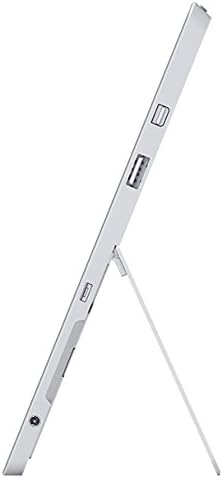
Gambar: Sisih view of the Microsoft Surface 3, illustrating the various ports including USB, Mini DisplayPort, and the kickstand in an open position.

Gambar: Close-up view of the microSD card slot on the Microsoft Surface 3, with a microSD card partially inserted, demonstrating storage expansion capability.
3.2 Kamera
- Kamera mburi: 8 MP for capturing photos and videos.
- Kamera ngarep: 3.5 MP for video calls and selfies.
4. Setup
4.1 Biaya wiwitan
Before first use, connect the Surface 3 to the power supply using the Micro USB charging port and allow it to charge fully. The battery indicator on the screen will show charging status.
4.2 Powering On and Windows Setup
- Pencet terus tombol Tombol daya until the Microsoft logo appears on the screen.
- Follow the on-screen prompts to complete the Windows 10 setup process. This includes selecting your language, connecting to a Wi-Fi network, and creating or signing in with a Microsoft account.
- Allow the system to download and install any pending updates for optimal performance and security.
4.3 Attaching Optional Accessories
- Type Cover: Align the Type Cover with the magnetic connector at the bottom edge of the Surface 3 until it clicks into place.
- Pena Permukaan: The Surface Pen can be magnetically attached to the side of the Surface 3 for storage. For initial pairing, follow the instructions provided with the pen or in Windows settings.
5. Ngoperasikake
5.1 Pandhu arah
- Layar tutul: Use gestures like tap, swipe, pinch-to-zoom for navigation.
- Pena Permukaan: Use the pen for precise input, drawing, writing, and annotating.
- Type Cover (Optional): Provides a traditional keyboard and trackpad experience.

Image: Microsoft Surface 3 in use with a Type Cover keyboard and Surface Pen, displaying a Windows 10 interface with various applications.
5.2 Windows 10 Features
- Menu wiwitan: Ngakses aplikasi, setelan, lan opsi daya.
- Pusat Tindakan: Swipe from the right edge of the screen to access quick settings and notifications.
- tugas View: View open applications and virtual desktops.
- Mode tablet: Switch to Tablet Mode for a touch-optimized interface.
5.3 Nyambung menyang Wi-Fi
- Bukak ing Pusat Tindakan by swiping from the right edge of the screen or clicking the icon in the taskbar.
- Tutul ing Wi-Fi lambang.
- Pilih jaringan sing dikarepake saka dhaptar banjur ketik sandhi yen dijaluk.
6. Pangopènan
6.1 Reresik
- Gunakake kain sing alus lan ora ana serat dampened with water or a screen cleaner specifically designed for electronics to clean the screen.
- Ngindhari bahan kimia sing atos, bahan abrasif, utawa kelembapan sing berlebihan.
- Clean the device exterior with a soft, dry cloth.
6.2 Nganyari Piranti Lunak
Priksa lan instal nganyari Windows kanthi rutin kanggo mesthekake yen piranti sampeyan duwe patch keamanan lan peningkatan kinerja paling anyar. Bukak Setelan > Nganyari & Keamanan > Nganyari Windows.
6.3 Perawatan Baterai
- Ngindhari suhu sing ekstrem, amarga bisa nyuda umur baterei.
- For optimal battery longevity, avoid consistently draining the battery to 0% or keeping it at 100% for extended periods.
- The Surface 3 has an average battery life of up to 8 hours under typical usage conditions.
7. Ngatasi masalah
7.1 Piranti Ora Diuripake
- Priksa manawa piranti wis diisi daya. Sambungake catu daya lan enteni sawetara menit sadurunge nyoba nguripake maneh.
- Perform a force restart by holding the Tombol daya for 10-15 seconds, then release and press it again briefly.
7.2 Masalah Konektivitas Wi-Fi
- Toggle Wi-Fi off and on in the Action Center.
- Restart your Surface 3 and your Wi-Fi router.
- Ensure you are within range of the Wi-Fi network and have the correct password.
7.3 Kinerja alon
- Nutup aplikasi sing ora perlu mlaku ing latar mburi.
- Priksa lan instal nganyari Windows sing ditundha.
- Priksa manawa sampeyan duwe papan panyimpenan gratis sing cukup.
8. Spesifikasi
| Fitur | Rincian |
|---|---|
| Nomer Model | 7G6-00014 |
| Ukuran Tampilan | 10.8 inchi |
| Resolusi Layar | 1920x1280 piksel |
| Prosesor | Intel Atom x7-Z8700 (2.4 GHz) |
| RAM | 4 GB |
| Panyimpenan | 128 GB SSD |
| Sistem Operasi | Windows 10 |
| Grafis Coprocessor | Quad-core Intel Atom x7-Z8700 processor |
| Tipe Wireless | Wi-Fi 802.11ac, Bluetooth 4.0 |
| Port USB | 1x USB 2.0, 1x USB 3.0 |
| Umur baterei rata-rata | 8 Jam |
| Bobot Barang | 1.37 kab |
| Dimensi produk | 14.02 x 8.64 x 1.58 inci |
| mburi WebResolusi cam | 8 MP |
| Ngarep WebResolusi cam | 3.5 MP |
9. Warranty lan Dhukungan
Your Microsoft Surface 3 Tablet is covered by a limited manufacturer's warranty. For detailed warranty information, including terms and conditions, please refer to the documentation provided with your purchase or visit the official Microsoft support websitus.
For technical assistance, software updates, and additional resources, please visit the official Microsoft Support website or contact their customer service. Keep your device's serial number (located on the back of the tablet or in Windows settings) readily available when seeking support.