
ASUS THUNDERBOLTEX II/DUAL
ASUS ThunderboltEX II/DUAL Adapter User Manual
Model: THUNDERBOLTEX II/DUAL
1. Pambuka
The ASUS ThunderboltEX II/DUAL is an add-on card designed to bring Thunderbolt 2 technology to compatible ASUS motherboards. This card provides two Thunderbolt 2 ports, enabling high-speed data transfer and versatile connectivity for various devices. With bi-directional transfer speeds of up to 20 Gbps, it offers significantly faster performance compared to USB 3.0. It supports daisy-chaining of up to six Thunderbolt devices and can connect multiple 1080p displays via DisplayPort.
This manual provides essential information for the proper installation, operation, and maintenance of your ThunderboltEX II/DUAL adapter.
2. Informasi Safety
Please read the following safety guidelines carefully before installing or operating the device:
- Priksa manawa komputer sampeyan wis dipateni lan dicopot saka stopkontak sadurunge dipasang.
- Copot listrik statis saka awak kanthi ndemek obyek logam sing wis di-ground (contone, sasis komputer) sadurunge nangani kertu.
- Handle the card by its edges to avoid touching sensitive components.
- Pasang kertu ing wadhah komputer sing duwe ventilasi apik supaya ora panas banget.
- Refer to your motherboard's manual for specific PCIe slot compatibility and Thunderbolt header location.
3. Isi Paket
Priksa manawa kabeh item ana ing paket sampeyan:
- ASUS ThunderboltEX II/DUAL Adapter Card
- Thunderbolt Header Cable
- Support CD/DVD (containing drivers and utilities)
- Pandhuan Pangguna (dokumen iki, utawa pandhuan wiwitan cepet)
4. Requirements Sistem
To ensure proper functionality, your system must meet the following requirements:
- Papan induk: Compatible ASUS motherboard with a dedicated Thunderbolt header. Refer to your motherboard's specifications for compatibility.
- Slot PCIe: An available PCI Express 2.0 x4 slot.
- Sistem Operasi: Microsoft Windows (Windows 7, 8, 8.1, 10, 64-bit recommended).
- Kartu Grafis: A graphics card with a DisplayPort output is required for video passthrough functionality.
5. Persiyapan lan Instalasi
5.1 Instalasi Fisik
- Siapke sistem sampeyan: Pateni komputer lan copot kabel listrik. Bukak kasus komputer.
- Locate a PCIe slot: Find an available PCI Express 2.0 x4 slot on your motherboard.
- Install the card: Carefully insert the ThunderboltEX II/DUAL card into the chosen PCIe slot until it is firmly seated. Secure the card with a screw to the chassis.
- Connect the Thunderbolt Header Cable: Connect one end of the provided Thunderbolt header cable to the Thunderbolt header on the ThunderboltEX II/DUAL card and the other end to the dedicated Thunderbolt header on your ASUS motherboard. Refer to your motherboard manual for the exact location of this header.
- Connect DisplayPort Cable (Optional): If you plan to use the DisplayPort passthrough feature for video output through the Thunderbolt ports, connect a DisplayPort cable from the DisplayPort output of your graphics card to the DisplayPort input on the ThunderboltEX II/DUAL card.
- Tutup kasus: Once all connections are secure, close your computer case and reconnect the power cord.
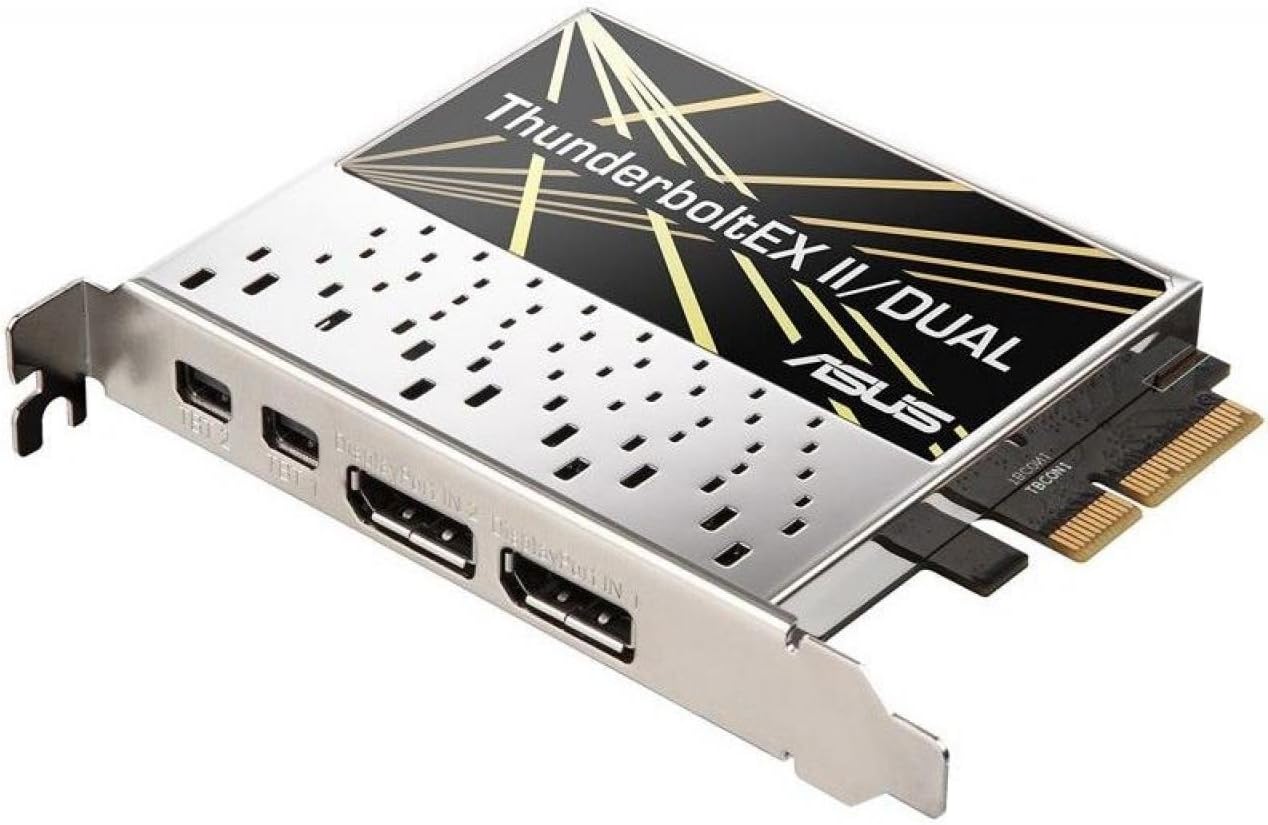
Gambar 1: Ndhuwur-mudhun view of the ASUS ThunderboltEX II/DUAL Adapter card, showing the PCIe connector and the two Thunderbolt 2 ports.
Gambar 2: Sisih view of the ASUS ThunderboltEX II/DUAL Adapter card, highlighting the two Thunderbolt 2 ports and the DisplayPort input.
5.2 Konfigurasi BIOS
After physical installation, you may need to configure your motherboard's BIOS/UEFI settings to enable Thunderbolt functionality. The exact steps may vary depending on your motherboard model:
- Power on your computer and press the designated key (usually Del or F2) to enter the BIOS/UEFI setup.
- Navigasi menyang Majeng setelan.
- Look for a section related to Thunderbolt or Intel Thunderbolt Technology.
- Enable the Thunderbolt controller and configure any related options, such as security levels (e.g., "Security Level: User Authorization" or "No Security").
- Save changes and exit the BIOS/UEFI. Your system will restart.
5.3 Instalasi Driver
Once your operating system loads, install the necessary drivers:
- Insert the provided support CD/DVD into your optical drive, or download the latest drivers from the official ASUS support website for your motherboard model and the ThunderboltEX II/DUAL card.
- Run the driver setup program and follow the on-screen instructions.
- Wiwiti maneh komputer sawise instalasi driver rampung.
- Verify the installation in Device Manager (Windows) to ensure the Thunderbolt controller is recognized and functioning correctly.
6. Operating the ThunderboltEX II/DUAL
6.1 Connecting Thunderbolt Devices
The ThunderboltEX II/DUAL card features two Thunderbolt 2 ports. You can connect various Thunderbolt-enabled devices, such as external storage drives, audio interfaces, and docking stations. Thunderbolt 2 supports bi-directional data transfer at up to 20 Gbps.
- Use certified Thunderbolt cables for optimal performance and compatibility.
- You can daisy-chain up to six Thunderbolt devices from a single Thunderbolt port. Connect the first device to the card, then connect the second device to the first, and so on.
- Ensure all devices in the daisy chain are powered on before connecting them to the Thunderbolt port.
6.2 Dhukungan Tampilan
The Thunderbolt 2 ports also support DisplayPort functionality. This allows you to connect displays directly to the Thunderbolt ports, or as part of a daisy-chain with other Thunderbolt devices.
- The card supports up to three 1080p displays.
- For video output, ensure your graphics card is connected to the ThunderboltEX II/DUAL card via a DisplayPort cable as described in the installation section.
- Some Thunderbolt displays may also provide USB and Ethernet connectivity through the Thunderbolt cable.
7. Pangopènan
The ThunderboltEX II/DUAL adapter requires minimal maintenance. To ensure its longevity and optimal performance:
- Keep your computer's interior clean and free of dust to ensure proper airflow and prevent overheating.
- Priksa manawa kabeh kabel disambungake kanthi aman.
- Priksa dhukungan ASUS kanthi rutin website for updated drivers and firmware for both the ThunderboltEX II/DUAL card and your motherboard.
8. Ngatasi masalah
If you encounter issues with your ThunderboltEX II/DUAL adapter, refer to the following common troubleshooting steps:
| Masalah | Kemungkinan Penyebab | Solusi |
|---|---|---|
| Card not detected by the system. |
|
|
| Piranti Thunderbolt ora dikenali. |
|
|
| No video output from Thunderbolt display. |
|
|
9. Spesifikasi
| Fitur | Rincian |
|---|---|
| Jeneng Model | THUNDERBOLTEX II/DUAL |
| Faktor wangun | kertu plug-in |
| Interface (Bus) Type | PCI Express 2.0 x4 |
| Pelabuhan | 2 x Thunderbolt 2 |
| Kacepetan Transfer Data | Up to 20 Gbps (bi-directional) |
| Dhukungan Tampilan | Supports up to three 1080p displays |
| Dhukungan Daisy-Chain | Up to 6 Thunderbolt devices |
| Ukuran (LxWxH) | 3.94 x 3.54 x 0.79 inci (kira-kira) |
| Bobot | 1.4 lbs (kira-kira) |
| Piranti sing kompatibel | Personal Computer (with compatible ASUS motherboard) |
10. Warranty lan Dhukungan
For information regarding the product warranty, please refer to the warranty card included with your purchase or visit the official ASUS support website. The warranty terms and conditions may vary by region.
For technical support, driver downloads, and frequently asked questions, please visit the ASUS support websitus:
When contacting support, please have your product model name (THUNDERBOLTEX II/DUAL) and serial number ready.
Ask a question about this manual
Ask about setup, troubleshooting, compatibility, parts, safety, or missing instructions. Manuals+ will review the question and use this page’s manual context to help answer it.